Explanation of the Privileges
To use eCase, a user will require privileges assigned to their user account based on the tasks they need to perform. The privileges can be grouped together into a role, for example a drafter, or can be assigned to an individual based on their tasks. There are multiple privileges, the below table provides a description of the privileges. Depending on the set up of your eCase, you may not have some of the privileges.
| Privilege Name | Description |
| Advise on cases | This privilege will allow the user to be selected as a Case Adviser on an FOI or EIR case type. When a user is selected as a Case Adviser, they will see the Case Adviser tab in their Workbasket. |
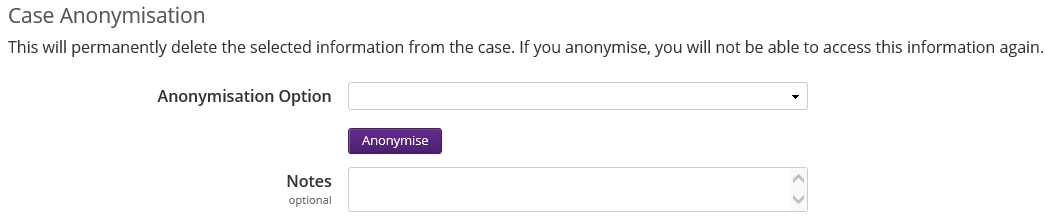
| Anonymise Correspondent Details | The user will have the ability to anonymise individual cases. They can choose to anonymise contact details, case notes, correspondent notes, email responses and documents. This role will activate the Case Anonymisation section on the Case Options page.
The user will also see the Anonymise link on the Correspondent Details section. This privilege can be added as an admin privilege for one user, or added to a role to be assigned to multiple users. For more information: Case Option |
| Approve Higher Payment | The user will be able to approve a higher payment amount in the Special Payment field. |
| Bulk reassign cases | The user will have the Case Reassign link under the Management column on the More menu. The user will be able to reassign individual or multiple cases to another drafter or team. They will also be able to reassign cases from the Case Search screen. This privilege can be added as an admin privilege for one user, or added to a role to be assigned to multiple users. For more information: Case Reassign |
| Change a case's type | The user will have the ability to change the case type once the case has been created and has a case reference number. The Edit link will become available on the Case Details page next to the Case Type field. |
| Check cases centrally | The user will see correspondence cases in their Workbasket when the case has been sent to the Correspondence Unit for checking. The information column will state Correspondence Unit. If there are multiple people with this privilege, the Actions column will show the View Case and Take Ownership links. The user will also see the With Private Office tab. When viewing cases in this tab, the user will be able to steal the case back to the Correspondence Unit for further action. NOTE: when allocating this privilege to a user account ensure that the case type is restricted to correspondence case types. |
| Clone any case | If the functionality to clone a case is available on your case type, for example for FOI or DPR case types, then the user with this privilege will be able to clone cases. |
| Close cases as No Response Necessary | The user will be able to close a case as no response necessary, if they have this privilege on their user account. |
| Close cases for admin reasons | The user will be able to close any case type for admin reasons. This privilege can be added as an admin privilege for one user, or added to a role to be assigned to multiple users. |
| Close Fast Track cases | The user will be able to access cases that have been sent to fast track and either close the case or convert them into a full case. The user will have the Fast Track Cases link under the Management column on the More menu. They will also see the Fast Track Cases link on the Workbasket. This privilege can be added as an admin privilege for one user, or added to a role to be assigned to multiple users. For more information: Fast Track Cases |
| Coordinate Transfer In cases | The user will receive cases in their Workbasket that have been received from another Department and allocated to the transfer in team. The user will see the Transfer In tab, with the Information column stating Transfer In Request. If there are multiple people with this privilege, the Actions column will show the View Case and Take Ownership links. |
| Coordinate Transfer Out cases | The user will receive cases in their Workbasket that have been allocated to the transfer out team. The user will see the cases in the My Work and Transfer Out tabs. The Information column will state Transfer Out. If there are multiple people with this privilege, the Actions column on the My Work tab will show the Manage and Dismiss link. |
| Create and withdraw tasks on closed cases | This privilege will allow the user to create tasks on a closed case. The create task button will be available when viewing a closed case. The privilege also allows the user to withdraw open tasks on closed cases. |
| Create cases | The user will have the New Case button on the eCase menu bar and will be able to create a new case via email or by selecting the New Case button. For more information: Create a New Case |
| Create people | The user will have the ability to add on a new un-registered user's details onto eCase and assign them roles and privileges.
NOTE: the user will need the View the Organisation Structure privilege as well as the Edit any person's roles privilege in order to create these new un-registered users. For more information: How to add a user to eCase that hasn't registered yet |
| Draft responses | When allocating a case, the user will be available in the Drafter field for the team/case types selected. Once allocated the case, they will be able to draft a response. The drafter role will cascade down the organogram. Set at a higher level for the drafter to be available for multiple teams, or at one specific team level to assist with drafting a response for just that one team level. The privilege is automatically assigned to the Drafter role. Select the case type the drafter is responsible for, or leave the case type field blank so that the drafter will be available to draft a response for all case types. For more information: |
| Edit a case's MP | The user will be able to edit the MP/Peer details once the case has been created and has a case reference number. The user will see the following links under the MP/Peer details:
|
| Edit any case | The user can edit the Case Details screen, using the Edit Case link on the left hand menu, for any case they are not a current owner of. The details will automatically be saved when exiting the case. When an edit has been completed via the Edit Case link, the case owner will see a blue banner at the top of the Case Details page stating what has been done and by whom. This banner will stay on the case for one week, or less if another Edit Case has been actioned. This privilege can be added as an admin privilege for one user, or added to a role to be assigned to multiple users. |
| Edit any person's roles | The user has the ability to add registered eCase users onto the Organogram into their relevant team and assign them roles and privileges. NOTE: to access the Organogram in order to edit a person's roles, the user must also have the View the Organisation Structure privilege on their user account. If a user would like to add a non-registered user onto the Organogram, they will need the View the Organisation Structure privilege, the Edit any person's roles privilege and the Create people privilege. This privilege can be added as an admin privilege for one user, or added to a role to be assigned to multiple users. Find more information: |
| Edit any task | The user will have the ability to Create Tasks on an open case when they are not the owner of the case. They can mark the tasks as complete, withdraw a task, reassign a task, extend a task and add a comment. NOTE: a case owner can also create, withdraw, reassign or extend a task on their own cases. This privilege allows the user to do these functions, plus complete a task on any open case with tasks associated to it. |
| Edit case dates | The user will have the ability to edit some date fields on open cases, for example the Received Date, Date to Unit, Tabled On, Finalised On, Date Verified and apply extension dates. |
| Edit case targets | The user will be able to edit the Case Target dates on target dates that are manually created. |
| Edit Contribution/QA Response Dates | The user will be able to edit the response date of a closed Contribution/QA request. On closed Contribution/QA requests there will be an Edit Response Date button. If the closed Contribution/QA was closed without a response, when editing the response date you will have the option to enter the response. This privilege can be added as an admin privilege for one user, or added to a role to be assigned to multiple users. |
| Edit Drafter Targets | The user will be able to edit the Drafter Target dates on cases where the Drafter Target dates are manually created. This privilege can be added as an admin privilege for one user, or added to a role to be assigned to multiple users. |
| Edit Response Dates | The user will be able to edit the Response dates. This privilege can be added as an admin privilege for one user, or added to a role to be assigned to multiple users. |
| Edit Roles | The user will have the Roles link under the Settings column on the More menu. The user will be able to add, modify and delete roles. They will also be able to add new privileges to a role or remove a privilege. The Roles area also allows the user to search for roles that contain a certain privilege. NOTE: The user will not be able to assign roles to a registered eCase user unless they also have the View the Organisation Structure and Edit any person's roles privileges. If the user would like to add roles and privileges to a non-registered eCase user they will also need the Create People privilege. This privilege can be added as an admin privilege for one user, or added to a role to be assigned to multiple users. Find more information: |
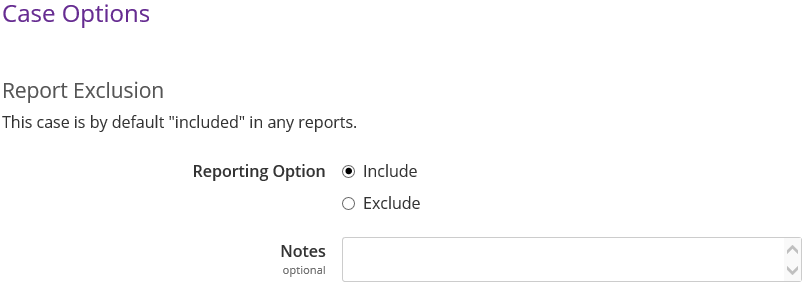
| Exclude cases from Reports | The Report Exclusion section on the Case Options page will be active for the user that has this privilege on their user account.
This privilege can be added as an admin privilege for one user, or added to a role to be assigned to multiple users. Find more information: Case Options |
| Ignore all Access Rules | The user will be able to view all cases where a case access rule has been set, for example for DPR case types, or sensitive cases. This privilege can be added as an admin privilege for one user, or added to a role to be assigned to multiple users. |
| Maintain Access Rules | The user will have the Access Rules link under the Management column on the More menu. The user will be able to create a new system wide Named Rule, modify Named Rules and delete them. They will also see the Global Access Rules which are applied to every case, regardless of whether they are marked as sensitive. NOTE: An individual user without this privilege can add access rules to an individual case which will override these system rules. They can do this if the Case Access feature is enabled on your eCase. This privilege can be added as an admin privilege for one user, or added to a role to be assigned to multiple users. |
| Maintain Automate rules | This privilege will allow the user to set up automation rules using eCase Automate. Find more information: eCase Automate |
| Maintain Classification Sets | The user will have the Classification Sets link under the Settings column on the More menu. The user will be able to manage the Classification Sets that they have assigned to some case types, for example Root Causes. The user will be able to add new levels in the set, rename them, rearrange the order and archive old ones. |
| Maintain Document Templates | The user will have the Document Templates link under the Settings column on the More menu. The user will be able to add, modify and delete document templates. This privilege can be added as an admin privilege for one user, or added to a role to be assigned to multiple users. Find more information: |
| Maintain Email Templates | The user will have the Email Templates link under the Settings column on the More menu. The user will be able to add, modify and delete email templates. This privilege can be added as an admin privilege for one user, or added to a role to be assigned to multiple users. Find more information: |
| Maintain Key Terms | The user will have the Key Terms link under the Settings column on the More menu. The user will be able to add, modify and delete Key Terms. This privilege can be added as an admin privilege for one user, or added to a role to be assigned to multiple users. Find more information: Key Terms |
| Maintain Ministers | The user will have the Ministers link under the Reference column on the More menu. Ministerial Roles can be added to eCase for PQ and Correspondence case types. Ministers can be added to these roles, their details modified or deleted and changed to another Minister. The user will be able to view the Private Office Team. NOTE: to edit the Private Office Team, you will need the View the Organisation Structure privilege as well as the Edit any person's roles privilege. This privilege can be added as an admin privilege for one user, or added to a role to be assigned to multiple users. Find more information: How to maintain Ministers |
| Maintain MPs & Peers | The user will have the MPs & Peers link under the Reference column on the More menu. The user will be able to view, add, modify and delete MPs and Peer details. The MP and Peer details will be updated automatically from the Houses of Parliament feed. If you want to modify any of the MP/Peer details, for example adding in a constituency address, you will be asked to confirm which details you would like to retain on eCase for that MP. The ones you have updated or overwritten with the details received on the Houses of Parliament feed. This privilege can be added as an admin privilege for one user, or added to a role to be assigned to multiple users. |
| Maintain Organisation Structure | The user will be able to add, modify or delete teams from the Organogram. NOTE: The user will need the View the Organisation Structure privilege on their user account as well in order to see the Organogram. This privilege can be added as an admin privilege for one user, or added to a role to be assigned to multiple users. Find more information: |
| Maintain Parliamentary Sessions | The user will have the Parliamentary Sessions link under the Settings column on the More menu. The user will be able to add, modify and delete Parliamentary Sessions for PQ case types. This privilege can be added as an admin privilege for one user, or added to a role to be assigned to multiple users. |
| Maintain Public Digest Emails | The user will have the Digest Emails link under the Management column on the More menu. The user will be able to add, modify and delete Public Digest Emails for the organisation. This privilege can be added as an admin privilege for one user, or added to a role to be assigned to multiple users. Find more information: How to set up Digest Emails |
| Maintain Standard Lines | The user will have the Standard Lines link under the Reference column on the More menu. The user will be able to add, modify and delete Standard Lines for the organisation. This privilege can be added as an admin privilege for one user, or added to a role to be assigned to multiple users. Find more information: Standard Lines |
| Maintain Subjects | The user will have the Subjects link under the Settings column on the More menu. The user will be able to add, modify and delete Subjects along with associating teams to those Subjects if required. The Subjects field can be found on the Case Details page. This privilege can be added as an admin privilege for one user, or added to a role to be assigned to multiple users. |
| Maintain User Accounts | The user will have the User Maintenance link under the Management column on the More menu. The user will be able to view and maintain users accounts. They will be able to unblock users, re-send the account activation link for new users, cancel user accounts and reinstate user accounts. This privilege can be added as an admin privilege for one user, or added to a role to be assigned to multiple users. Find more information: User Maintenance |
| Manage a case's outcomes | The user will have the ability to add an outcome to a case type that has this feature, for example FOI or DPR case types. |
| Manage a hub | The user will be a Hub coordinator for the case types assigned to the role. They will have the ability to reassign cases and monitor workflow. Once the privilege is added to a role, for example Hub Coordinator, the role can be added to a user account. If you would like the user to just manage the cases for that team, then add the user account at team level. If you would like the user to manage several teams, then add the role to the user account at a higher team level. If you have a central team that manages the handling of the case types, then the role can be added to the user account at the top level of the organogram. The user will see all the cases allocated to any team in the organogram in their Workbasket and Hub tab. Find more information: |
| Manage Batch Responses | The user will have the Batch Responses link under the Management column on the More menu. The user will be able to create new batches, edit a batch, delete a batch and process a batch. For more information: Batch Response |
| Manage Case Anonymisation | The user will have the Case Anonymisation link under the Management column on the More menu. The user will be able to set a schedule for automatically anonymising case details for relevant case types. The user can set new schedules, modify schedules and delete schedules. NOTE: if the user would like to anonymise an individual case using the Case Anonymisation section on the Case Options page, the user will need the Anonymise Correspondent Details privilege on their user account as well. This privilege can be added as an admin privilege for one user, or added to a role to be assigned to multiple users. |
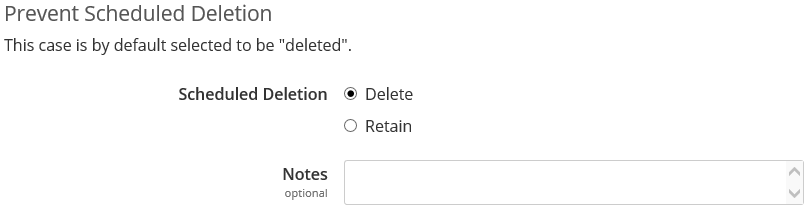
| Manage Case Retention | The user will have the Case Retention link under the Management column on the More menu. The user will be able to set a schedule for automating the deletion of case types, they can manual delete cases or they have the option to retain multiple cases using the Retain Cases link. The Prevent Scheduled Deletion section on the Case Options page will be active for the user that has this privilege on their user account.
This privilege can be added as an admin privilege for one user, or added to a role to be assigned to multiple users. |
| Manage cases at Private Office | The user will receive cases that are allocated to their Private Office and can be sent Assistant Private Secretary QA requests. NOTE: the user will need to be added in a Private Office within the Private Offices section on the organogram. |
| Manage cases Awaiting Allocation | The user will see the Awaiting Allocation tab on their Workbasket if your eCase has the feature that uses this tab, for example Parliamentary Question case types. |
| Manage cases Awaiting External Input | The user will be able to view and manage cases in the Awaiting External Input tab. The privilege is team and case specific, so it will not cascade down the organogram. Assign the privilege to the user's account at the team where they need to see the cases in the Awaiting External Input tab. |
| Manage cases requiring clarification | The user will see cases in the Awaiting Clarification tab on their Workbasket and be able to Take Ownership of the case and manage it. For more information: |
| Manage cases with the SPADs Office | The user will see cases in their Workbasket that have been sent to the SPADs Office. If there are multiple people with this privilege, the Actions column will show the View Case and Take Ownership links. The user will also see the With SPADs Office tab. |
| Manage Field Value Options | The user will have access to the Field Values Options link under the Settings column on the More menu. The user will be able to add, modify, delete or archive values that appear in the drop-down list on key fields on the Case Details screen. This privilege can be added to a maintain eCase role. Find more information: Field Value Options |
| Manage Parliamentary Responses | The user will see PQ cases in their Workbasket that have been sent to the Parli team. If there are multiple people with this privilege, the Actions column will show the View Case and Take Ownership links. The user will also see the With SPADs Office tab and the With Private Office tab. When viewing cases in these tabs, the user will be able to steal the case back to the Parliamentary Team for further action. |
| Manage Reminders | The user will have the Reminders link under the Management column on the More menu. The user will be able to add, edit and remove reminder details for an FOI case type. |
| Manage Scanning | The user will be able to scan a document into eCase to create a case, or to add a document to an existing case. They will see the Scan Error link on the Workbasket and have the Awaiting Scan tab. The user will have the Scanning link under the Management column on the More menu. The user will be able to access the Scan Administration section where they can print scan sheets for any user, void scan sheets, see scan errors and scan history. |
| Manage the HoP queue | The user will have the HoP Queue link under the Management column on the More menu. The user will be able to view the interface transactions between eCase and the Houses of Parliament, for example when the latest run was for fetching new or updated Parliamentary Questions. The user will also be able to upload a TSO file containing PQs to load into eCase. This privilege can be added as an admin privilege for one user, or added to a role to be assigned to multiple users. Find more information: HoP Queue |
| Manage mailboxes | The user will have the ability to add, modify or delete email mailbox configuration on eCase. Emails can be configured on eCase to say, for example, who the emails are sent from or the name of the sender. These can be configured by team, case type or QA type, along with the ability to cascade the mailbox to teams below it in the organogram. This privilege can be added as an admin privilege for one user, or added to a role to be assigned to multiple users. Find more information: |
| Manage the team | The user will have the ability to add or delete a role to a registered user account at the team level the user has this privilege assigned to them. For example, if the user with this privilege is in the Human Resources team, they will be able to assign roles to other team members at this team level. NOTE: if the user would like to manage the team via the Organogram, they will also need the View the Organisation Structure privilege on their user account. If the user would like to add a non-registered eCase user, they will need the Create People privilege on their user account. |
| Manage webform submissions | The user will have the ability to manage the Webform Submissions queue, which will be available to any customer that has an eCase hosted webform on their website. Find more information: |
| Monitor draft cases | The user will be able to view any draft cases in the Draft Cases tab. A draft case is one that doesn't have a Case Reference Number and is in the process of being created on eCase. NOTE: It will not show you open cases at the Create Draft stage. This privilege can be added as an admin privilege for one user, or added to a role to be assigned to multiple users. |
| Overrule Mandatory Clearances | The user will be able to overrule a Mandatory Clearance that has been set on a case that they have not set. They will see the Overrule link. This privilege can be added as an admin privilege for one user, or added to a role to be assigned to multiple users. Find more information: How to overrule a mandatory clearance |
| Prepare and close cases | The user will receive cases in their Workbasket that have been sent from the Send to Print/Prepare button. If there are multiple users with this privilege, they will all see the case in their Workbasket with the Information column stating Print / Prepare with the actions of View Case and Take Ownership. |
| Publish to Disclosure Log | The user will have the privilege to publish or unpublish the outcome of FOI cases. They will see the Disclosure Log link on the left tool bar on an FOI case. This privilege can be added as an admin privilege for one user, or added to a role to be assigned to multiple users. |
| Receive Central FOI QAs | The user will appear and can be selected in the recipient field when a Central FOI Quality Assurance request is created. NOTE: the user will be added at the Organisation-wide roles level on the organogram. |
| Receive Contributions | The user can be asked to provide a contribution to a case response. Generally, the privilege will be added to the user account at the team level. The contributor will then only be selected for that team. Set at a higher team level in the organogram if the contributor is available for multiple teams under that team level. Select the case type the contributor is responsible for, or leave the case type field blank so that the contributor will be available to provide a contribution for all case types. Find more information: Contribute to a case |
| Receive Contribution CCs | The user will appear in the CC Recipients drop-down when a New Contribution is requested for an FOI case type or when the contribution request is chased. |
| Receive Contribution CCs by default | The user will automatically be pre-populated in the CC Recipients drop-down when a New Contribution is requested for an FOI case type. |
| Receive Deputy Director QAs | The user will appear and can be selected in the recipient field when a Deputy Director Quality Assurance request is created. NOTE: the user can be added at any level of the organogram. If they are added at a team level, the user will only show in the recipient field when that team is on the Case Details page. If they are loaded at the top level for all teams, the user will appear in the recipient field no matter what team is selected on the Case Details page. Find more information: Quality Assurance requests |
| Receive Director General QAs | The user will appear and can be selected in the recipient field when a Director General Quality Assurance request is created. NOTE: the user will be added at the Organisation-wide roles level on the organogram. Find more information: Quality Assurance requests |
| Receive Director QAs | The user will appear and can be selected in the recipient field when a Director Quality Assurance request is created. NOTE: the user can be added at any level of the organogram. If they are added at a team level, the user will only show in the recipient field when that team is on the Case Details page. If they are loaded at the top level for all teams, the user will appear in the recipient field no matter what team is selected on the Case Details page. Find more information: Quality Assurance requests |
| Receive FOI Appeals Manager QAs | The user will appear and can be selected in the recipient field when an FOI Compliance and Appeals Manager Quality Assurance request is created. NOTE: the user will be added at the Organisation-wide roles level on the organogram. Find more information: Quality Assurance requests |
| Receive FOI Request Handling Manager QAs | The user will appear and can be selected in the recipient field when an FOI Request Handling Manager Quality Assurance request is created. NOTE: the user will be added at the Organisation-wide roles level on the organogram. Find more information: Quality Assurance requests |
| Receive Head of FOI QAs | The user will appear and can be selected in the recipient field when a Head of FOI Quality Assurance request is created. NOTE: the user will be added at the Organisation-wide roles level on the organogram. Find more information: Quality Assurance requests |
| Receive Head of Unit QAs | The user will appear and can be selected in the recipient field when a Head of Unit Quality Assurance request is created. NOTE: the user can be added at any level of the organogram. If they are added at a team level, the user will only show in the recipient field when that team is on the Case Details page. If they are loaded at the top level for all teams, the user will appear in the recipient field no matter what team is selected on the Case Details page. Find more information: Quality Assurance requests |
| Receive Information Rights Unit QAs | The user will appear and can be selected in the recipient field when an Information Rights Unit Quality Assurance request is created. NOTE: the user can be added at any level of the organogram. If they are added at a team level, the user will only show in the recipient field when that team is on the Case Details page. If they are loaded at the top level for all teams, the user will appear in the recipient field no matter what team is selected on the Case Details page. Find more information: Quality Assurance requests |
| Receive Ministerial Briefing Team QAs | The user will appear and can be selected in the recipient field when a Ministerial Briefing Team Quality Assurance request is created. NOTE: the user will be added at the Organisation-wide roles level on the organogram. Find more information: Quality Assurance requests |
| Receive Ministerial Correspondence Unit QAs | The user will appear and can be selected in the recipient field when a Ministerial Correspondence Unit Quality Assurance request is created. NOTE: the user can be added at any level of the organogram. If they are added at a team level, the user will only show in the recipient field when that team is on the Case Details page. If they are loaded at the top level for all teams, the user will appear in the recipient field no matter what team is selected on the Case Details page. Find more information: Quality Assurance requests |
| Receive Peer Review QAs | The user will appear and can be selected in the recipient field when a Peer Review Quality Assurance request is created. NOTE: the privilege is generally assigned to a number of roles, for example Drafter, Case Adviser, PQ Manager. Find more information: Quality Assurance requests |
| Receive Permanent Secretary QAs | The user will appear and can be selected in the recipient field when a Permanent Secretary Quality Assurance request is created. NOTE: the user will be added at the Organisation-wide roles level on the organogram. Find more information: Quality Assurance requests |
| Receive Permanent Secretary's Office QAs | The user will appear and can be selected in the recipient field when a Permanent Secretary's Office Quality Assurance request is created. NOTE: the user will be added at the Organisation-wide roles level on the organogram. Find more information: Quality Assurance requests |
| Receive Policy Correspondence Unit QAs | The user will appear and can be selected in the recipient field when a Policy Correspondence Unit Quality Assurance request is created. NOTE: the user can be added at any level of the organogram. If they are added at a team level, the user will only show in the recipient field when that team is on the Case Details page. If they are loaded at the top level for all teams, the user will appear in the recipient field no matter what team is selected on the Case Details page. Find more information: Quality Assurance requests |
| Receive PO Facilitator QAs | The user will appear and can be selected in the recipient field when a PO Facilitator Quality Assurance request is created. Find more information: Quality Assurance requests |
| Receive Policy Official QAs | The user will appear and can be selected in the recipient field when a Policy Official Quality Assurance request is created. NOTE: the user will be added at the team level on the organogram. Find more information: Quality Assurance requests |
| Receive Press Office QAs | The user will appear and can be selected in the recipient field when a Press Office Quality Assurance request is created. NOTE: the user will be added at the Organisation-wide roles level on the organogram. Find more information: Quality Assurance requests |
| Receive Private Secretary QAs | The user will appear and can be selected in the recipient field when a Private Secretary Quality assurance request is created. NOTE: the user will need to be added in a Private Office within the Private Offices section on the organogram. Find more information: Quality Assurance requests |
| Receive Senior Civil Servant QAs | The user will appear and can be selected in the recipient field when a Senior Civil Servants Quality Assurance request is created. NOTE: the user will be added at the team level on the organogram. Find more information: Quality Assurance requests |
| Receive Senior Manager QAs | The user will appear and can be selected in the recipient field when a Senior Manager Quality Assurance request is created. NOTE: the user will be added at the Organisation-wide roles level on the organogram. Find more information: Quality Assurance requests |
| Receive SPADs QAs | The user will appear and can be selected in the recipient field when a Special Adviser Quality Assurance request is created. NOTE: the user will be added at the Organisation-wide roles level on the organogram. Find more information: Quality Assurance requests |
| Receive Team Lead QAs | The user will appear and can be selected in the recipient field when a Team Lead Quality Assurance request is created. NOTE: the user will be added at the team level on the organogram. Find more information: Quality Assurance requests |
| Reopen cases | The user will have the Reopen button on the Reopen cases tool bar when viewing a closed case. They have the ability to reopen the close case for Case Data update or for Case Processing. Find more information: How to Reopen a Case |
| Run Bulk Reports | The user will have the Bulk Reports link under the Management column on the More menu. The user will be able to create new reports, run existing reports, view reports that have been previously run, edit the report parameters and delete reports. This privilege can be added as an admin privilege for one user, or added to a role to be assigned to multiple users. |
| Run Reports | The user will have the Reports link under the Management column on the More menu. The user will be able to view reports that have been previously run, schedule report runs and delete reports. This privilege can be added as an admin privilege for one user, or added to a role to be assigned to multiple users. |
| Run User Account Report | The user will have be able to download the User Account Report from the People screen. The report will allow the user to export data on users, roles and teams to help with user account maintenance. This privilege can be added to a People Management role. NOTE: the report is based on the People search criteria. Select the search parameters and then download the excel spreadsheet by selecting the Download User Account Report button. |
| Scan to new/existing cases | The user will be able to scan a document into eCase to create a case, or to add a document to an existing case. They will see the Scan Error link on the Workbasket and have the Awaiting Scan tab. The user will have the Scanning link under the Management column on the More menu. The user will be able to access the Scan Administration section where they can print scan sheets for themselves, void their scan sheets, see scan errors and scan history for themselves. |
| Search for cases | The user will see the Case Search and Quick search fields on the eCase menu bar and will be able to search for cases. Find more information: How to search for a case |
| Search the Audit Log | The user will have the Audit Log Search link under the Management column on the More menu. The user will be able to search for various audit log entries and download a spreadsheet if required. This privilege can be added as an admin privilege for one user, or added to a role to be assigned to multiple users. Find more information: Audit Log Search |
| Search today's PQs | The user will have the Parliamentary Questions link under the Management column on the More menu. The user will be able to view the Parliamentary Questions that have been loaded into eCase for today. Additional search criteria are available: this week's PQs or additional display criteria, for example Parliamentary Session, UIN or if the PQs have been answered. The user can also download the search in a PDF document. This privilege can be added as an admin privilege for one user, or added to a role to be assigned to multiple users. |
| Transfer cases between hubs | The user will see the Hub Transfer button on the Ownership tool bar if this feature is enabled for your eCase. |
| Triage cases | The user will see and be able to manage cases that have been sent to the Triage stage. If there are multiple users with this privilege, the Workbasket will show two actions at Triage stage, View Case and Take Ownership. |
| View cases | The user will be able to view cases, where they are not the Case Owner, when a Global Access Rule has been created using the Rule Scope of 'People with the View Cases privilege', can/cannot, search or view all cases, cases assigned to their team or subteam, or a specific case type. NOTE: this privilege will only work if you have a Global Access Rule set up. |
| View the Dashboard | The user will have the Dashboard link under the Management column on the More menu. The user will be able to view the eCase dashboard:
NOTE: In order to view the information for Open Cases and Key Terms in the Case Search screen, the user will need the Search for Cases Privilege on their user account. This privilege can be added as an admin privilege for one user, or added to a role to be assigned to multiple users. |
| View the Organisation Structure | The user will have the Organogram link under the Settings column on the More menu. The user will be able to view the Organogram and the Organisation Structure. NOTE: To edit the user's in the Organogram, you will need the View the Organisation Structure privilege as well as the Edit any person's roles privilege. To edit the organisation structure, you will need the View the Organisation Structure privilege as well as the Maintain Organisation Structure privilege. Find more information: Organogram |
| Work on reopened cases | If the user is a drafter for a specific team, the user will need this privilege to appear in the Assign To field when re-opening a case that has been transferred to another Government Department. |