
Print
Take Ownership
Once you have viewed the case details, you can Take Ownership of the case to progress the investigation. There are two ways to Take Ownership:
- Go to the Awaiting Clarification tab and click on the Take Ownership link.
- Go to the Awaiting Clarification tab, click on the View Case link and select the Take Ownership button.
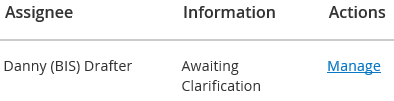
The details on the Awaiting Clarification tab will show your name in the Assignee field and the Actions link will now say Manage. However, the case will still be in the Awaiting Clarification tab until you allocate the case.
Follow the steps below to re-calculate the target dates and Allocate the case.
- Click on the Manage link to access the Case Details screen.
- Move down to the Date Verified field and click on the Edit link.
- In the New Date Verified field, click on the calendar icon to select the date you received the clarification information. The target dates will be calculated from this date, leaving the Date Received as the original request for information.
- Click on the Allocate Button. The Allocate pop up window appears.
- Click on the drop down arrow next to the Drafter field to select the name of the person you would like to assign the case to.
- Optional. Select the Email Assignee tick box to send an email to the person you are assigning the case to.
- Optional. If you would like to copy other people into the notification email, click on the CC Recipients tick box. Additional fields will become available. The Group/Team allocated in the Case Details screen will automatically be populated in the Include People From Teams area.

In the CC area, click on the drop down arrow to select the people in the chosen team.
NOTE you can select other teams using the Include People From Teams drop down arrow. The new people will then be available in the CC area for selection. - Optional. Add a comment that will appear in the Notes section of Case Details.

- Click the Submit button. The case will have moved from your Workbasket to the allocated drafters Workbasket. If you have assigned the case to yourself, the case will now appear in your My Work tab.