
Print
View a case
When a case is Awaiting Clarification any drafter in the team, or a case advisor, will now see this case in their Awaiting Clarification tab. It allows any of the team to view the case details or take ownership of the case once the clarification information is received.
If a new case is awaiting clarification, the alert 
To view a case, follow the steps below.
- Sign into eCase. Refer to the How to Sign into eCase section.
- Go to the Awaiting Clarification tab. Cases that are awaiting clarification will have the following fields in the Workbasket.
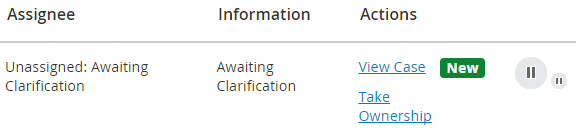
Field Description Assignee Unassigned: Awaiting Clarification Information Awaiting Clarification Actions Option to either View Case or Take Ownership. - Review the Case Type/Case Title and choose a case you would like to view. Click on the View Case Link. The Case Details screen appears where you can review the case information. You then have the option to Take Ownership of the case, or Reassign the case to another drafter.