
Print
How to Request a Contribution
A New Contribution Request is used for sending an email to the contributor. The contributor can respond directly to the email or via eCase.

The eLearning module will open in a new internet window.
- How to send a contribution request to an eCase user or to a team email address (Duration = 20 minutes).
- How to send a contribution request email to a user who does not use eCase (Duration = 21 minutes).
Or, follow the steps below.
- Sign into eCase. Refer to the How to Sign into eCase section.
- Go to your Workbasket and click on the Manage link, in the Actions column, for the case that you would like to request a contribution for.
- Click on the Contributions/QA (0) link on the left menu. The Contributions & Quality Assurance screen appears.
- Click on the New Contribution Request button. The New Contribution Request pop up window appears.
- Select the Type of contribution you would like to send. This can either be a request for information or a request
to draft
a response to the case, for example a Hub coordinator may request a draft to be written for the case. Depending on what Type is selected, the wording on the email template will change. This can include mail merge fields that take the data from the Case Details screen.

NOTE additional Types will appear for different case types. For example, for Correspondence and PQ case types, you will see Transfer In Request and Transfer Out Request. - The Team field will be automatically pre-populate using the information from Case Details. If the person you require works for a different part of the organisation, click on the drop down arrows and select the relevant team.
- In the Address Replies To/Send From field, you have the option to select an email you would like to send the Contribution email from. Your email address will appear along with any emails that have been entered in Mailboxes using a Mailbox Type of Send On Behalf Of for the team associated to the case or at a team higher in the organisation structure hierarchy.
NOTE if there are no additional emails set up in Mailboxes, your email will be pre-populated in the Address Replies To/Send From field. - Once the Team has been
selected, the people able to contribute from this team will appear in the
Recipients drop down
list.
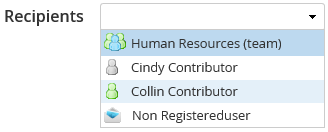
Recipient Description A Team 
The contribution will be sent to all contributors set up on the system for the team selected (whether they are a registered user or not).
Each contributor will have the option to view the contribution or Take Ownership of the contribution.
If there are no contributors listed under the team, a warning message will appear telling you that you cannot send a contribution request to a team with no members.
If there is a non-registered contributor, indicated by the envelope
Multiple Teams The contribution will be sent to all contributors set up on the system for the chosen teams.
Each contributor will have the option to view the contribution or Take Ownership of the contribution. One member from each team can Take Ownership of the contribution and respond via eCase. Multiple users can respond via email.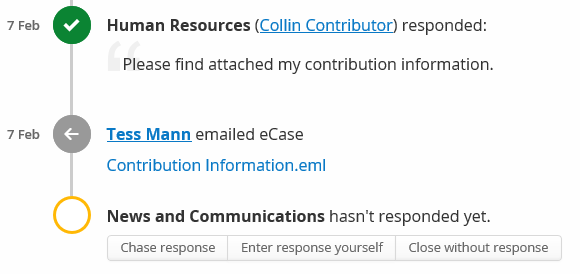
· Select the first team in the Recipients field.
· Go back to the Team field and click on the cross to delete the original team.
NOTE the Recipients field becomes inactive.
· Go back to the Recipients field and select the new team from the drop down list. Both teams are now associated to the contribution request.Individual Contributor The contribution email will be sent to one person from the team.
Recipient Icons Description 
The contributor is active on eCase at the time of sending the contribution request. 
The contributor is logged into eCase, but are not active at the moment. 
The contributor is registered on eCase, but is not currently logged into the system. 
The contributors details have been added to eCase, but they have not registered on eCase. Multiple Contributors Instead of sending to the whole contributor team, you can select multiple individuals using the Recipient drop down list.
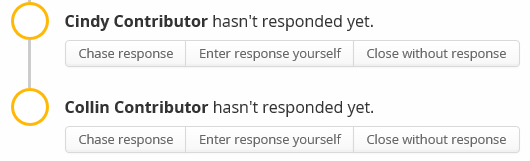
Each individual can be tracked and chased.
Non-eCase user A recipient email address can be typed into the Recipients field. When you start to type, the Email to field appears in green below the Recipients field. Select the Email to field when the email address has been fully entered.
NOTE if you type in the email address, the contributor will not be able to access eCase. If the contributor replies to all on the email, the email will be attached to the contribution in eCase. If they just reply, the email will come back to the Email On Behalf Of email inbox. Attach the email to the case , then complete the contribution by entering the response yourself . - Optional: The Email Template field will appear if there is more than one Email template to use for the New Contribution Request. Select the relevant template by clicking on the drop down arrow.
NOTE The email text can be viewed in the Body section. - The Subject is
the title of the email and can be edited using the
Edit Subject link.
- Modify the Body of the email if required.
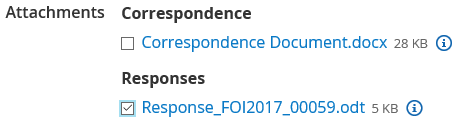
NOTE If a contributor doesn't want to sign into eCase, they can reply to all on the request for a contribution email, and their response will be attached to the contribution. Make sure that you mention this option in the Body of the email. - Attach case files to the request. Place a tick in the checkbox next to each
relevant document in the
Attachments
section.
- Select the Due Date of the contribution request by using the calendar icon.
- Preview
the email request by clicking on the
Preview/Send Email button.
NOTE if the recipient, or one of the recipients on the contribution request, has the PDF Preference set to On, then any ODT documents attached to the contribution request will be converted to a PDF document. Both document types will be attached to the contribution email.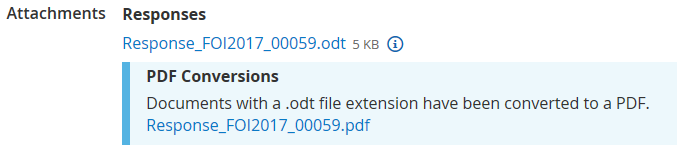
- If all of the details are correct, click on the Send button. If you need to amend any of the details, click on the Back link.
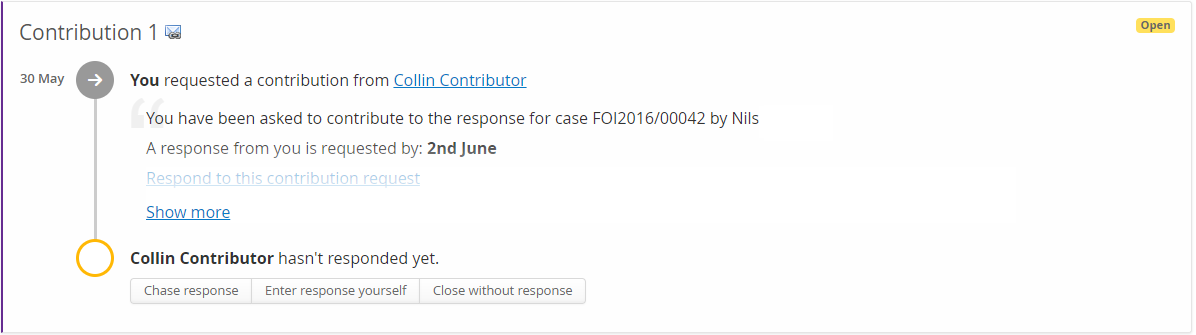
There are three buttons that become available once the request has been sent. These are all for actions if the contributor does not respond to the request via eCase.
1. Chase response – send an email to the contributor to chase the information requested.
2. Enter response yourself – enter the information directly into eCase if you have received it via another method.
3. Close without response – close the contributor request without adding in a response.