Print
How to view your details on eCase
The My details page enables you to update key information about yourself and your user account for eCase.
To access My details, go to your account detail area and click on the drop down arrow.
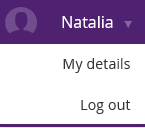
Select the My details section. The Contact Details screen appears where you can update several user details.
|
If you want to… |
Then… |
|
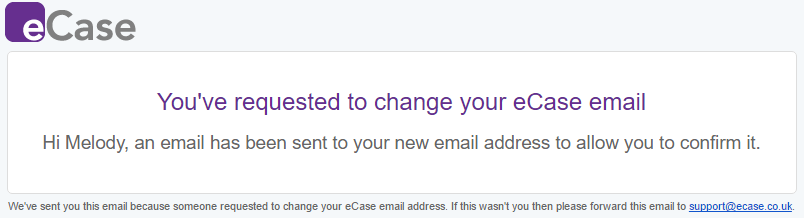
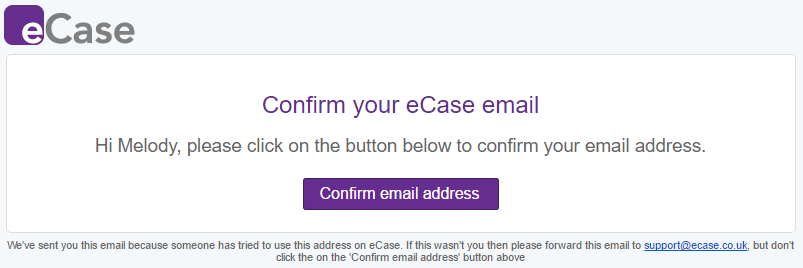
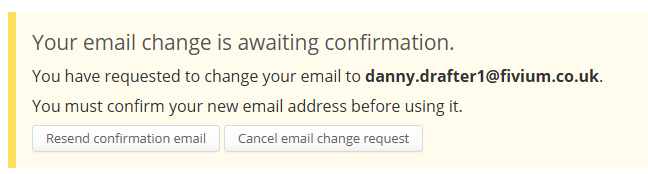
Change your email address of where eCase notifications go |
|
| Change your name that appears on the system | Go to the Contact Details area and update your Forename or Surname. These details will be visible throughout the system. Ensure they are accurate. Select the Save button. A message appears confirming that your changes have been saved. |
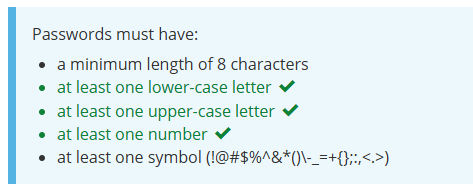
| Change your Password | If you would like to change your password, select the Change Password link on the left My Details menu. The Change Password screen appears. Enter in your New Password and confirm your new password in the Confirm New Password field. Your password must contain 8 or more characters and include at least one upper-case letter, one lower-case letter, one number and one symbol (!@#$%^&*()\-_=+{};:,<.>). When you begin typing your new password, the Password must have information banner will update to show which requirements you have met.
Select the Set passwordbutton to save your new password details. |
| Update your Accessibility Preferences | To update how your alert notification are dismissed, select the Accessibility Preferences link on the left My Details menu. The Accessibility Preferences screen appears. The default is for Alert notifications to dismiss themselves after a short period of time. To change this so that alert notifications stay until you manually dismissed then, select the Alert notifications stay until manually dismissed radio dial. To view an example of the option you have chosen, select the Show me an example of an alert notification button. Select the Save button. A message appears confirming that your changes have been saved. |
| Update your Contribution and QA document format preferences | When you are sent a Contribution or QA with a document attached, you can choose whether to receive the attachment as a PDF or in their original format. Select the Document Preferences link on the left My Details menu. The Contributions & QAs Document Format Preferences screen appears. Select either Convert to PDF or Original file format. Select the Save button. A message appears confirming that your changes have been saved. |