
Organogram
The Organogram is a representation of your organisation's structure. It is used to show hierarchical relationships between the teams for producing reports and assigning users their roles.

The eLearning module will open in a new internet window.
- The Organogram screen explained (duration = 7 minutes)
To access the organogram in order to create a new team, archive a team, move a team within the organisation structure, or add users and their roles, go to the More menu and select the Organogram link under the Settings section.
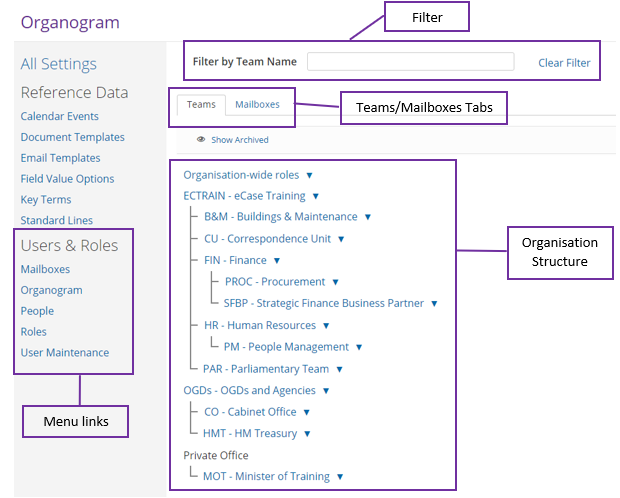
The Organogram screen is made up of several sections. These are described in the table below.
|
Field |
Description |
|
Filter by Team Name |
To find a team in your organisation structure, use the Filter by Team Name field at the top of the Organogram screen. This will reduce the list of teams available, making it easier to view and amend details for the team selected. |
| Teams/Mailboxes Tabs | There are two different views to the Organogram. One based on Teams, where you can add new teams, rename a team, move a team in the organogram and archive a team if it is no longer needed. Teams is where you can also add people and their roles to their relevant team. The second tab is called Mailboxes. This is where you can view email configuration that has been entered for the team using the Mailboxes feature. |
| Organisation Structure |
The organisation structure is broken down into several areas. You will see some or all of the areas depending on your eCase setup.
|
| Users & Roles menu links | The left hand Users and Roles menu allows you to access links that are relevant to viewing and maintaining users, teams and mailboxes. It allows you to select relevant links whilst you are on the Organogram screen rather than having to go back to the More menu. |