Print
How to maintain a Private Office team
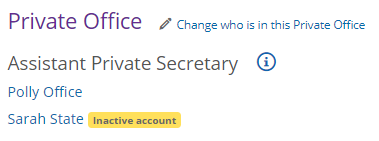
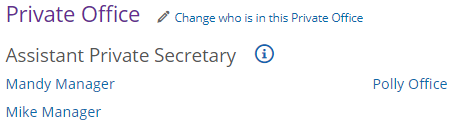
On the ministerial role screen, you have the ability to add and view users in the Private Office for that ministerial role. You will see the names of the users along with their roles.
NOTE You can also update the users from the Organogram screen
To add or edit a Private Office team, follow the steps below.
- Select the eCase More menu, then Ministers in the Reference section.
- Select the name of the ministerial role where you would like to view the Private Office team.
- To add or edit the Private Office team, select the Change who is in this Private Office link next to the Private Office title. You will be redirected to the Organogram screen for that Private Office.
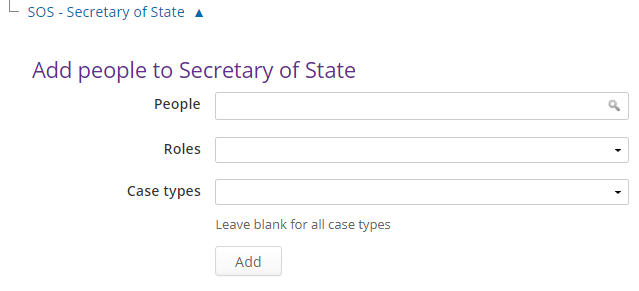
- Follow the steps in the How to add one or more users to a team section, to add Private Office users. For example:
Role/Privilege Description Assistant Private Secretary - Manage cases at Private Office privilege People in this role will be able to manage PQ and MC cases that are Sent to Private Office. They will also be selected in the QA type of Assistant Private Secretary. Private Secretary - Receive Private Secretary QAs privilege People in this role can be selected in the QA type of Private Secretary
NOTE To get back to the Ministers screen, go to the More menu, then select Ministers from the Reference section. - Once a user has been added with a role, they will appear in the Private Office section on the ministerial role.