
Data Protection Request (DPR) Case Type
Contents
Create a New Case
A DPR case can be created manually using the New Case button, or via email to new.case@your-eCase, where you will change the 'your-eCase' with the name of your eCase domain, for example new.case@organisation.ecase.co.uk or new.case@organisation.ecase.gsi.gov.uk. If you send the email from your own eCase email address, the case will appear in your My Work tab.
Find out more…
How to create a case manually
How to create a case using email scraping
Acknowledge the receipt of the case
An acknowledgement email or letter can be sent out at either the Create Case or Create Draft stage depending on your processes. On the Case Details screen, move down to the Correspondence section and click on the Send Acknowledgement button. The Send Acknowledgement pop up window will be defaulted to letter or email, depending on the Reply Preference chosen on Case Details.
Once sent, a record of the Acknowledgement Email or Letter can be found at the bottom of the Case Details page under the Correspondence section. A copy of the letter or email will also be found in Documents.
Find out more…
Acknowledge the request via letter
Acknowledge the request via email
Back to Top
Clarify the request
When a request is received, you may not have all of the information you require in order to progress the case. A request for more information can be sent to the correspondent as either the Create Case or Create Draft stage depending on your processes. On the Case Details screen, move down to the Correspondence section and click on the Send Clarification button. The Send Clarification pop up window will be defaulted to letter or email, depending on the Reply Preference chosen on Case Details.
Once a request for clarification has been sent, a record of the Clarification Email or Letter can be found at the bottom of the Case Details page under the Correspondence section. A copy of the letter or email will also be found in Documents.
At this stage, if required, the target dates can be stopped and the case moved to the Awaiting Clarification tab. The target dates will not be re-calculated until the correspondent has sent in the required information. At this stage, the new target dates will be calculated from the Verified Date.
Find out more…
Request clarification via letter
Request clarification via email
View a case in the Awaiting Clarification tab
Take Ownership of the case from the Awaiting Clarification tab
Back to Top
Allocate a case
Once a case has been created, the next step is to allocate the case for investigation. This can be sent to a Hub Coordinator or directly to a drafter.
Find out more…
Back to Top
Mandatory Clearances
Mandatory Clearances can be set on a case at any point during the case process. The clearances are highlighted so that the drafter is aware that the people/teams assigned in this area are required to quality check the case before a response can be sent and the case closed. Once the quality checks are accepted, the status of the mandatory clearances will be set to complete and the response can be sent.
Find out more…
How to add a Mandatory Clearance
Back to Top
Link a Case
When a new case is added onto eCase you have the opportunity to search for any cases that are similar in nature to it. This can be through the Key Terms used or the contact details. It allows you to view historical information, provide consistent responses or see where multiple requests have been made by the same correspondent.
Find out more…
Back to Top
Watch a Case
You can watch a case at any point in the case history, or you can allocate other people as watchers. This allows you to keep track of cases that are of interest to you or other people. You can request for the cases to be shown on a Watching Cases tab on your Workbasket, or to receive email notifications as the case progresses.
Find out more…
Back to Top
Contribution
A contribution in eCase is a request for further information, by a case owner to an advisor or specialist. Refer to the Contribution section.
When a new contribution is requested, you have the option to select contribution types of:
- Request for Draft - where you are asking the contributor to draft or collate the response to the case.
- Request for Information - where you are asking for information to assist you in drafting the response to the case.
Find out more…
Contribute to a Case
Respond to a contribution
Reply to All from an email Contribution Request
Enter response yourself
Back to Top
Prepare a Response
The Response screen guides you through the process of preparing a response. Click on the Prepare a Response link on the left menu.
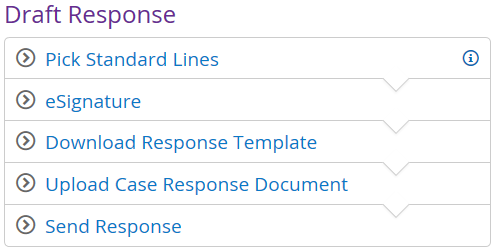
In the Prepare a Response screen, Pick Standard Lines, which are paragraphs of text that can be added to the response document when the mail merge [[STANDARD_LINES]] is used. These will be pre-populate in the response document when you download the response template in the Download Response Template section.
Once contributions have been received and the response document is complete. Go to the Upload Case Response Document section to add the response document to the case. Quality assurances can then be completed on the document.
Complete the Outcomes, then go to Send the Response. An email response can be sent directly from eCase, or a record of the date a letter was sent.
Find out more…
How to Respond to a case
How to add Standard Lines to a case
Send response out via email
Send response out via letter
How to record the Outcome
How to close a case
Back to Top
Quality Assurance
A Quality Assurance (QA) request can be sent from eCase, via email, to have the response checked before sending out to the correspondent. This can be done using the Contributions/QA link, and then the New Quality Assurance Request. If the Standard Quality Assurance Request email template is used, the recipient of the QA can click on the approve or reject link directly from the email they have been sent. Refer to the Quality Assurance section.
Find out more…
Quality Assurance
Respond to a QA request