
Print
Send Response out via letter
If you are sending the response out via letter, follow the steps below.
- Ensure that Letter is selected in the Respond By field when you expand Response Method.
- Expand the Send Response section.
- Optional: In the Comments field, enter any details about the response. For example when the letter was printed and posted.
- In the Date Sent field, enter in the date when the response was sent using the calendar icon.
- Select the Mark as Sent
NOTE a Response Document has to be uploaded to the case before the send response can be marked as sent.A message appears telling you that the response letter has been sent. A banner appears telling you that one case response has been sent. To view the response details, go to the Correspondence section on the Case Details screen.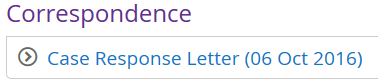
Select the arrow icon to expand the information. Any Standard Lines used will also be recorded here. The response letter can be viewed in the Documents section.
NOTE If you are the Case Owner and you have the Edit Response Dates privilege on your user account, you will have the ability to change the date the response was sent. Select the edit pencil icon at the end of the Date Response Sent field, amend the date and select the Save button. The sent date will have changed.