
Select Standard Lines
The first step of the response process is to select any standard lines of text that relate to the case. This can either be a text line, a paragraph of text or a template that can be used as the response document. These can be automatically suggested from the team chosen to investigate the case or from key terms used to describe the case.
The selected standard lines will be used in the response template when you download it. If a standard line template is available, this should be downloaded instead of the response template and used as part of the response to the correspondent.
To select Standard Lines, click on the arrow next to Pick Standard Lines. If any Standard Lines are related to the case, they will appear in a list when the Pick Standard Lines is expanded.
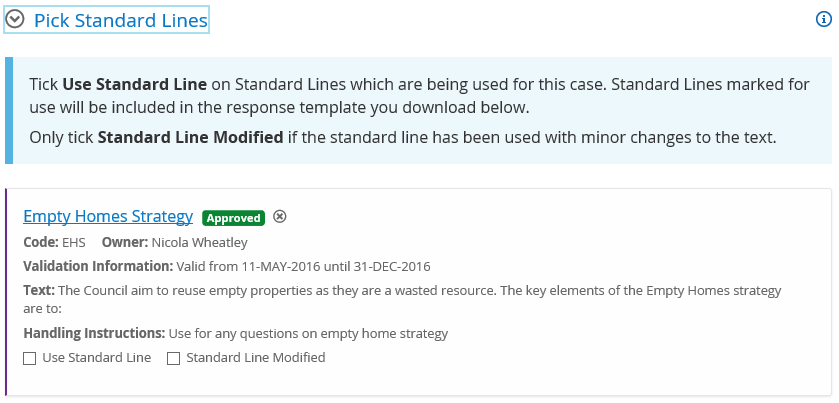
Field | Description |
+ Add more standard lines |
|
Validation Information | The dates the standard line or template is available to be used. A standard line can still be used if it has |
Text | The standard line text that will be added to the response document. |
Handling Instructions | Will provide instructions on when and how to use the standard line. |
Template | If a template is available, you will use this as your response document, rather than using the response document template as discussed in the next section. |
Use Standard Line | Select Use Standard Line on the Standard Lines which you would like to use for the case. These lines will be included in the response template. |
Standard Line Modified | Select Standard Line Modified only if you have made changes to the Standard Line text. |
| Click on the delete icon to remove any manually added Standard Lines from the response screen. |
Show used standard lines only | Click on the Show used standard lines only link if you only want to see the standard lines that are going to be used on the response. To undo click on the Show all standard lines link. |


Once standard lines are selected, or a standard line template downloaded, collapse the Pick Standard Lines section by clicking on the

