
Print
What are notes?
Notes is an area where any notes and comments can be added to a case at any stage of the process.
Notes can be added to the system in two ways:
- By manually adding a Case Note by using the Notes left menu link.
- By adding a comment in the Add Comment boxes.
To add a note onto a case, follow the steps below.
- Sign into eCase. Refer to the How to Sign into eCase section.
- Go to your Workbasket and click on the Manage link, in the Actions column.
- On the left menu, click on the Notes (2) link. The Case
Notes
screen appears. All of the
notes currently on the case can be viewed here.
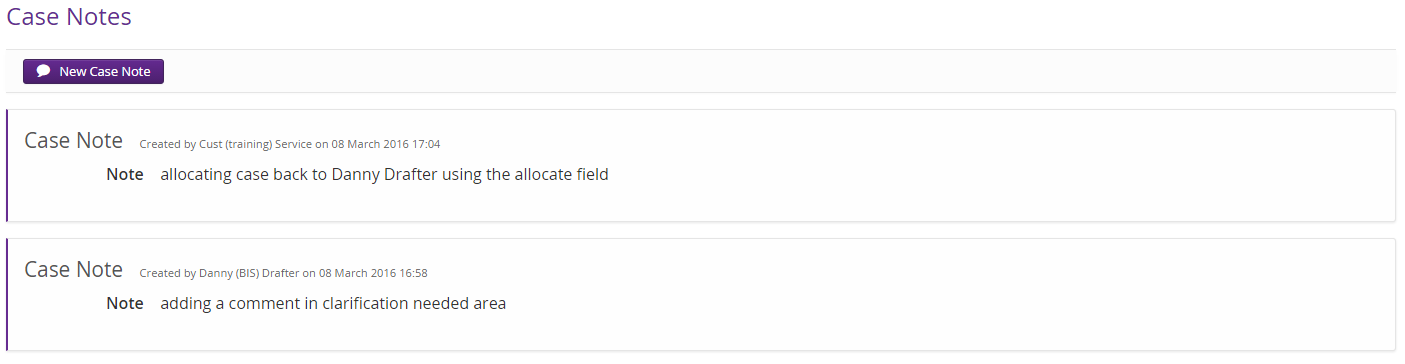
- To add a new note onto the case, click on the Add a case note link for the first note to be added to a case,
and then the
New Case Note button for any additional case notes. The new Case note
opens. The
- Add any relevant notes to the Note section.
- If you would like to attach a document or email to the note, click on the Choose file... link in the Attachments field, or drag and drop the file into this area.
- Click on the Add URL link to open the free format URL box. Manually type in a relevant URL. Once the note is saved, the URL will become active.

- To delete a note, click on the Delete link.
- To save the case note, click on the Save Case Note button. The case note will be added to the case.
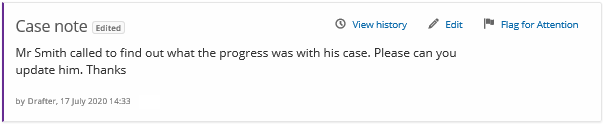
Edit a case note - to edit a case note, click on the Edit link. Additional notes, attachments and URLs can be added. Once saved, the View history link becomes available.
View history - once a case note has been edited and re-saved, a View history link becomes available. Each modification can be seen with the changes, who made the change and when.
Delete a case note - to delete a case note, click on the Edit link and then the Delete link. Once deleted a Show Deleted link becomes available. If you would like to reactivate the note, click on the Show Deleted link. The Deleted Case Notes screen becomes available. Click on the Restore link next to the case note you would like to reactivate. Click on the OK button to confirm the restore, amend the case note if required and then click on the Save Case Note button.
Flag for Attention - select the Flag for Attention link to add the case as a banner at the top of the Case Details page. This will show whenever anyone goes into the case. To remove from the Case Details page, click the Mark as Read link. This will keep the case note in the Notes section, but remove it from the Case Details page.