
Print
Reject - Incorrect Hub
If a case is assigned to the wrong Hub and cannot be investigated, then the case can be rejected and sent back to the original person who assigned the case to the Hub.
To Reject the case, follow the steps below.
- Click
on the
Manage
- On
the
Hub Allocation tool
bar select the
Reject - Incorrect Hub
- The Case Creator
- Optional. Select the Email Assignee
- Optional. If you would like to copy other people into the notification email, click on the CC Recipients tick box. Additional fields will become available. The Team allocated in the Case Details screen will automatically be populated in the Include People From Teams area.

In the CC area, click on the drop down arrow to select the people in the chosen team.
NOTE you can select other teams using the Include People From Teams drop down arrow. The new people will then be available in the CC area for selection. - Optional. Add a comment that will appear in the Notes section of Case Details.

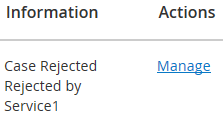
NOTE if you have used the [[CASE_NOTE]] mail merge field in the Case Assignment Notification email template, the comment added in the Add Comment field will be added to the email sent to the recipient. - Click the Submit button. The case will have moved from your Workbasket to the original case owners allocated Workbasket. The Information
column will show as Case Rejected, Rejected by and will be back to the Manage
When the case owner manages the case, at the top of the Case Details page, they will see a blue banner stating that the case has been rejected at hub stage and by whom. This will stay on the Case Details page for a week, or less is a superuser edits the case.
The owner can then Allocate, Reassign or Release Ownership from the Reallocation tool bar.