
Print
View a case
When a case has been assigned to a Hub, the case can be seen by any user that is set up within that Hub in the Hub tab in their Workbasket. If a new case is assigned the alert 

If there are multiple users in the Hub, then each user can view the case before one person takes ownership. To view a case, follow the steps below.
- Sign into eCase. Refer to the How to Sign into eCase section.
- Go to your My Work tab or the Hub tab. Cases that have been allocated to a Hub will have Hub Allocation under the Information column and View Case under the Actions column.
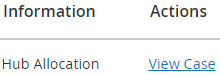
If you are viewing the case from your My Work tab, the Take Ownership link will also be available. - Review the Case Type/Case Title and choose a case you would like to view. Select the View Case link. The Case Details screen appears where you can review all of the case details.