
Did you Know?
Top Tips and did you know questions and answers are added to this page for your reference. If you have a question and you can't find the answer on eCase help, please refer to your Customer Success Representative.
Bulk Reports
Calculating the number of workdays between two dates
The NETWORKDAYS Function calculates the number of workdays between two dates in Excel. When using the function, the number of weekend days are automatically excluded.
It also allows you to skip specified holidays and only count business days.
Back to Top
Add case data columns to other tabs
If there are columns on the Case Data tab that you need on other tabs e.g. you want to add the Case Title field to the Contribution tab, you can do this by adding in the title of the column you want to the new sheet.
Steps to follow:
- On the Case Data tab, find the column you want on another tab
- Add a new column on the tab you want to add this to
- Enter the name of the column you need (we recommend copying and pasting to ensure it is the right header as if you title it something else it won’t pull data across for you)
- Save the template
- Upload the template to eCase
- Run report
Your new column will now show on your tab(s) and have data populated into it.
Columns in the Case Data sheet on Bulk Reports can be used in any sheet but columns in other sheets can only be used in the worksheet(s) they are listed in - for example, you can use Correspondence Description in any worksheet (as it comes from Case Data), but you can only use Contribution Method in the Contributions worksheet.
Back to Top
Where to see a breakdown of columns available in Bulk Reports
You can view a list of the columns available to report on within bulk reports along with details as to what each of these columns are.
In order to access this, go to Bulk Reports and then click on New report or Edit against an existing report.
Under section 2, you will see the You can see a full list of the sheets and columns you can use here link.
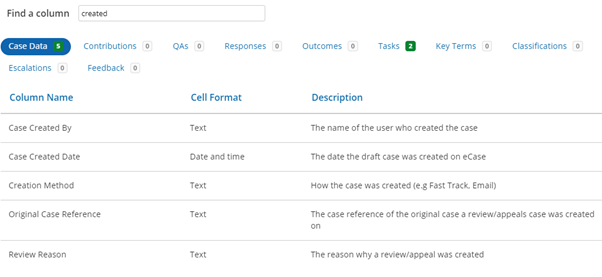
Browse through the columns to find the column you need. Or use the Find a column search function to bring back results relevant to the word you typed in.
In the example below, I have searched for the word 'created'. this word can be found five times in the Case Data tab and two times in the tasks tab. Select the tab heading to review the Column Names.
Back to Top
View all runs against a bulk report
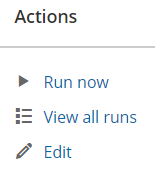
Within the Bulk Report page, you are able to access all of the previous runs against any report. Under the Actions column, select the View all runs link.
Back to Top
Delete columns on the case data tab
If there are columns that you do not require on the case data tab within a bulk report, you are able to delete these when creating your template.
When this is then uploaded to eCase, the next time you run this report, these deleted columns will not appear on the case data tab. The columns will remain deleted, only showing you the columns you want in your report.
Back to Top
Report Retention
You can set a retention period for your bulk reports on new or existing templates.
If you want to update a report that currently exists, select the Edit button. Scroll down to the fourth section where you can edit the Retention Period.

24 months is the maximum amount of time a report can be stored on eCase.
Back to Top
Did you know, you can run Quick Reports for specific dates?
The Quick report function gives you the ability to run a report in the format of any of your Bulk Report templates for specific date periods along with other parameters. This enables you to easily access data.
In order to access Quick Reports, follow these steps:
- Go to the Bulk Reports screen
- Select the Quick report button
- The Quick Report pop up window will appear
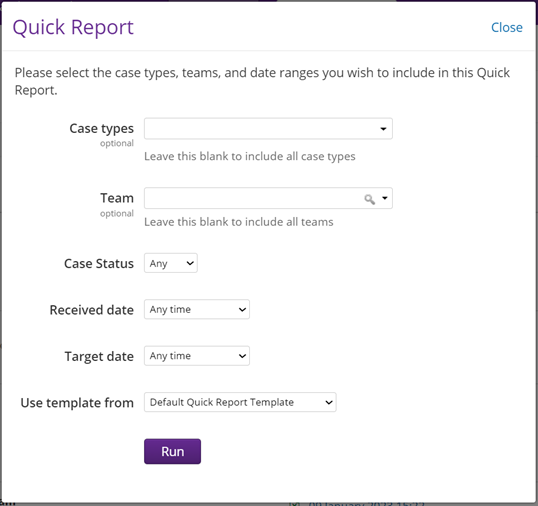
- Within this pop up, you can specify the Case types that you wish to report on as well as any specific Team
- You can also select a time period by
either
Received date or Target date. In both of these fields, you can select any standard time period, or select Custom dates to specify a date range
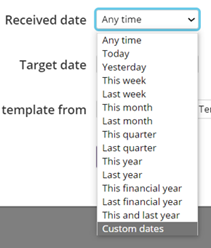
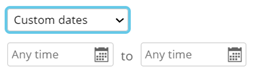
- If you choose Custom dates, two date fields will appear. Select your time parameters for the data that you wish to report on
- Select the Use template from drop down to select from the list of bulk report templates that you have set up on your environment
- Select the Run button to run the report
This will run a report in the format of the template that you selected, based on the parameters chosen.
NOTE Quick reports are not stored on eCase. Save offline.
Back to Top
Case Fields
Have I completed the right fields on Case Details?
If you’re unsure whether you’ve entered information into all the mandatory fields on a case, you can select the Validate Page link. This will highlight any fields that still need to be completed on Case Details.
You will receive a message at the top of Case Details stating which fields you need to complete. Select the Item link to go straight to that field. There will also be a red line and text next to each field that needs to be completed.
If the error is on a screen then a red cross will show next to it on the menu.
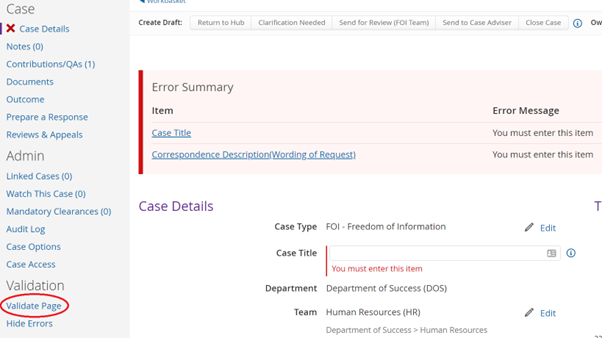
NOTE The fields will also validate when you send the case on in the workflow.
Back to Top
Expanding certain fields: Did you know?
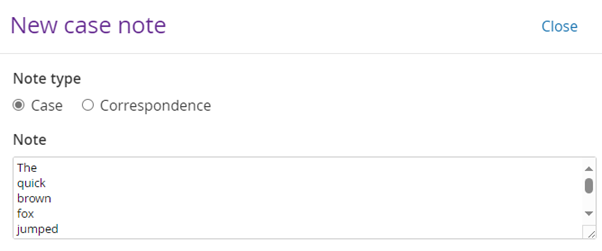
If the text you want to add is longer than the box on screen, you can expand it by dragging on the bottom right hand corner.
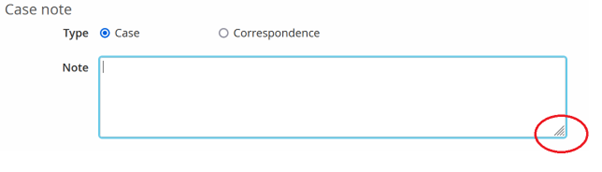
For example, when adding information on the case note screen.
Before:
After:
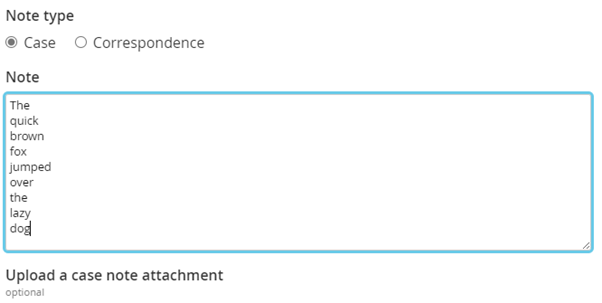
This is available for Case Notes, Case Description, Handling Instructions and various note options when completing certain eCase fields.
NOTE Certain browsers may not allow this. Check with your internal IT team if you can't do this to see if there's an alternative browser to use.
Back to Top
Case Search
Wildcard searches
You can do wildcard searches on Case Search e.g. if you type CT% in the postcode field it will show you all postcodes that start with CT or CT%4 would show all postcodes that start with CT and end with 4.

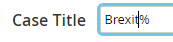
You could search for case titles that contain Brexit by just typing Brexit but if you needed Brexit to be at the beginning, you could search for Brexit%.
Back to Top
What do they know? wildcard search
If you don’t use the Correspondence Group field to track 'What do they Know' FOI cases, you can still search for these by using a wildcard search.
Type %@whatdotheyknow.com into the Email Address field on Case Search and this will bring back cases with that email domain.

This will work for any email domain that you need to do a search for.
Back to Top
Documents
Documents list view
You can see the size of the file you are attaching to an email in the Documents lists view on the Documents page within a case:
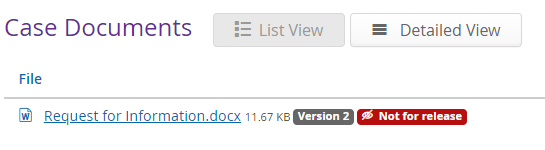
You can also see the size of the
documents within the attachment section when sending out a response.
Back to Top
Are your document templates saved as Rich Text Format (RTF)? If you document has a lot of images, the RTF format can increase the size of the file
Word duplicates any image within a document if saved in the .rtf format which means that they are stored twice.
If a document is saved in an .rtf format, images are also stored in a different ‘window media file’ format rather than jpg or png for example which increases the size of the document.
Both of these examples can increase the size of the document that you are storing on eCase. If this is the case, resave your document template as an open document text (OTF) file format.
Back to Top
Email Templates
You can have different email templates set up depending on what you are asking for
There are a number of different email template options available to you. Within each email template category, you can set up different email templates depending on who you are asking and what you are asking for.
For example:
- Sending a contribution request to an eCase user
- When sending a contribution request to an eCase user, we recommend that you include the mail merge field [[CONTRIBUTION_HYPERLINK]] so that the user can access the request in eCase straight from the email
- Sending a request to a non eCase user
- When sending a contribution request to someone who doesn’t use eCase, we recommend that you include instructions for them to ‘reply to all’ when responding to the email. The unique contribution email will then copy their email response onto the relevant contribution request
- You may also want to include the mail merge field [[CORRESPONDENCE_DESCRIPTION]] so that the contributor is aware of the original request
- If requesting that the contributor writes up the draft
- You may wish to attached the response document to the contribution request so that the contributor can write the response straight in to the response document
- If requesting that the contributor provides supporting information
- You may want to include the mail merge field [[CORRESPONDENCE_DESCRIPTION]] so that the contributor is aware of the original request as well as details on the information that you want them to respond with
Back to Top
Use Ctrl + Enter for neat spacing
When editing an email template, you can press Ctrl + Enter to insert a single-line paragraph break. This avoids the default double-line spacing
New eCase User
I'm a new eCase user - What do I need to know?
If you’ve recently been asked to use eCase for case management, here are some useful hints and tips to get you started:
Access to eCase
By now, you should have access to eCase. Speak to your manager if you need additional permissions as this isn’t something that Fivium can support with.
Training/Guidance
Your organisation will provide you with training so speak to your manager for further information.
There are help pages available. Once in eCase, select the Help link on the top eCase tool bar.
There are also eLearning modules available. These are short modules explaining some of the key features of eCase.
As each organisation may require slightly different information to be captured, or follow a slightly different process, we recommend speaking to your Manager for the correct process information.
Support Team
There is a Support Team at Fivium who can help with technical issues. We suggest asking your organisation whether the process is to raise with your internal helpdesk first or come directly to Fivium. Either way, it’s always best to ask a super user first within your organisation in case they can help. Ask if your organisation have a mailbox that you can use for question. If you need to come to the Fivium support team, refer to the eCase Support help pages.
Test Site
Each organisation has access to a test site so that you can do training or testing without impacting the live cases. Speak to your manager if you don’t have access and want to test before using live cases.
Emails do not go to live email address to avoid any confusion with live cases. Speak to your manager to find our where test emails will go so you can complete any testing/training.
Back to Top
Internet Browser Speed
Closing your browser every day can help with it's speed
If you don’t close down your browser each evening, when you come in the next morning there may be stale cookies and you may receive error messages when trying to use eCase. We recommend ensuring the browser is closed down each time you log off for the day to avoid this happening.
If you experience any eCase error messages then please raise these to support@ecase.co.uk
Back to Top
Privileges & Roles
What is the difference between privileges in a role and admin privileges on the People screen?
When adding privileges to users you can either add these into a role or you can give user’s additional admin privileges via the People screen.
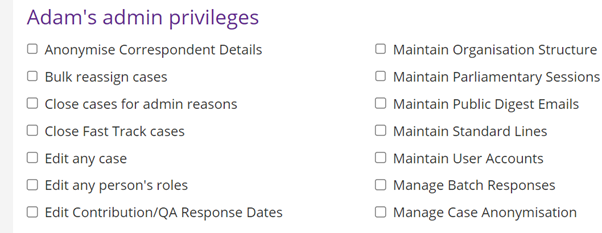
We recommend adding privileges into a role if everyone in that role does that task. For example, if all Hub Coordinators also need to Maintain Standard Lines, then this is added into that role. If only one of your Hub Coordinators does this extra step then leave it out of the role and just give that one person the admin privilege Maintain Standard Lines.
The more admin privileges you give someone, the more effort it will be to give them to someone else if the role holder changes. If you find they need a lot of extra items ticked, review if a new role is needed instead.
Back to Top
Recommendations
- DO create custom roles that match what your team does e.g. if your drafters also do reporting then add the relevant reporting privileges into the drafter role
- DO create different roles per case type if e.g. your drafters do different things. This means when someone new joins they can easily be added into the correct case type role and not have access to things that they shouldn’t
- DO regularly review who has certain privileges to make sure people have the right access
- DO create roles with more than one privilege e.g. don’t create a role called Create Cases and just add the create cases privilege as when new people join you will have to add them into multiple roles. We recommend adding a group of privileges into one role to match what that group of people do
Back to Top
Download User Account Report
- The Download User Account Report that provides information about your users, for example account status; when they were last on eCase; what roles they have been set up with and what case types and teams they have been set up for.
- In order to run this report, you will need the Run User Account Report privilege, along with privileges to see the People screen. Go to the More button, then select People under the Settings column. You will find this report under the filter options.
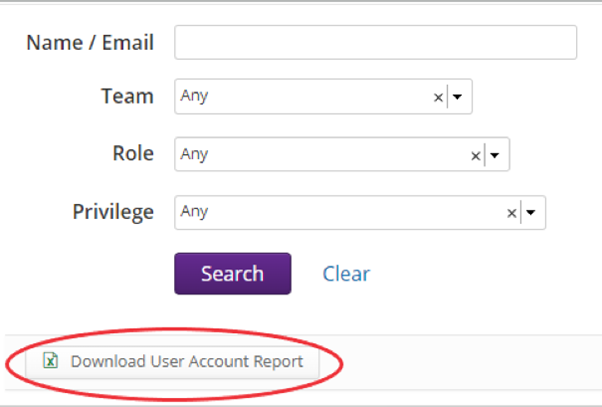
- The report will be based on the search criteria selected. Narrow the search by using the filter criteria, for example if you want to see data on specific users, teams, roles or privileges.
Back to Top
Targets
The default settings for case targets need to change, what do I do?
The lead times that eCase calculates are configurable by the following:
- Case Type
- Case Target
- Contribution Target
- Request for Draft
- Request for Information
- QA Target
- Drafter Target
This is something that can be updated by your Customer Success Representative so please get in contact with them if you would like to review any of your current target configurations.