Secure Share
Secure Share allows you to securely send files from eCase. It allows you to send multiple and large files in one go so that the correspondent can view and download from a secure link.

The eLearning module will open in a new internet window.
- How to send a response via Secure Share (Duration = 23 minutes)
NOTE You will only see the Secure Share section on the Prepare a Response screen if it is set up for your Organisation and the case type you are processing.
If Secure Share is set up for your case type, when you select Email in the Response Method, the Secure Share section will appear on the Prepare a Response screen.
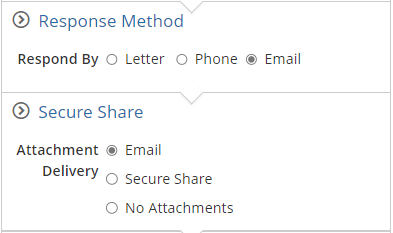
The Secure Share section will allow you to confirm how you want to send the response to the correspondent.
| Attachment Delivery | Description |
| If Email is selected, the Send Response email template will appear. You can complete the email template as normal and attachment the response files using the Attachments section. The files will be attached to the email and sent via eCase. NOTE: the combined size of the file attachments cannot exceed 10MB - 20MB as the email will fail to send. The maximum size allowed is dependent on the correspondent's email account. |
|
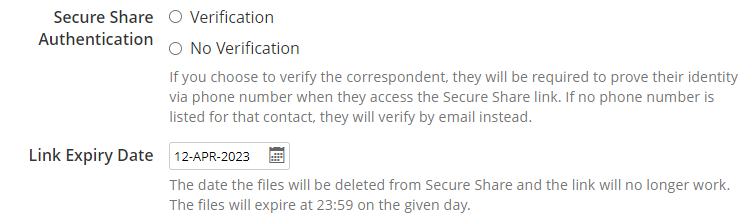
| Secure Share | When Secure Share is selected, several different options become available for you to select.
Secure Share Authentication
Link Expiry Date
To send a Secure Share email, see the Send a Response using Secure Share help page. |
| No Attachments | If No Attachments is selected, you are saying that you have no files to attach onto the email you are sending to the correspondent. Complete the Send Response email template as normal. You will not be able to select any files in the Attachments section.
|