
Print
Send a Response using Secure Share
Sending a response using Secure Share is the same as sending a response by email, however additional mail merge fields are required in the email template in order for the correspondent to access the Secure Share link and know when the link expires.
Follow the steps below to send an email with a Secure Share link on it.
- Ensure that Email is selected in the Response Method section on the Prepare a Response screen.

- Complete the Secure Share details.
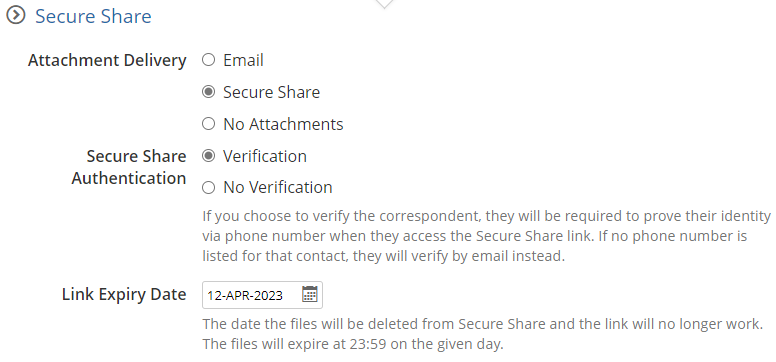
- In the Address Replies To/Send From field, you have the option to select an email you would like to send the Response email from. Your email address will appear along with any emails that have been entered in Mailboxes using a Mailbox Type of Send On Behalf Of for the team associated to the case or at a team higher in the organisation structure hierarchy.
NOTE If there are no additional emails set up in Mailboxes, your email will be pre-populated in the Address Replies To/Send From field. - Review the email address in the To field. This will have been entered in the Correspondent Details section on the Case Details screen. Amend if necessary.
NOTE The CC and BCC fields have been hidden as the Secure Share link can only be sent to one recipient. - Optional: If you have multiple email templates created in eCase for responding to a correspondent, then the Email Template field will appear. Select the relevant email by selecting the drop-down arrow in the Email Template field. Review the text of the emails in the Body section.
- The
Subject line will pre-populate from the
Case Response
email template. If you want to edit the Subject line, select the Edit Subject
- Review and update the Body of the email as required. If an Email Template has not been created specifically for sending out emails via Secure Share, you will need to amend the text in the Body of the email in order to add in the two mail merge fields. You will not be able to send an email via Secure Share unless these mail merge fields are entered in the Body of the text. The mail merge fields are:
[[SECURE_SHARE_LINK]] - this will add the unique Secure Share link to this email for this correspondent to access their files.
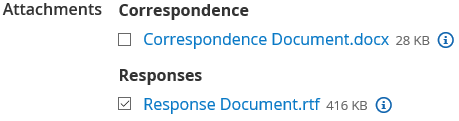
[[SECURE_SHARE_DISCLAIMER]] - A sentence will be added to the email explaining to the correspondent how long they will be able to access the link to download their files. The time and date will come from the Link Expiry Date field on the Secure Share section. - If required, in the Attachments
area, select the case files to attach to the email. Place a tick in the relevant document tick box.
- Select the
Preview / Send Email button. The Preview Email pop up window appears. Check that all of the mail merge
fields work and that the email is correct.
NOTE You will not be able to review the Secure Share link as this is not generated until you select the Send button. The documents attached can be viewed in the Attachments section of the Preview Email. - To send the email, select the Send button. A message appears telling you that the email response has been sent. A banner appears telling you that one case response has been sent. To view the response details, go to the Correspondence section on the Case Details screen.
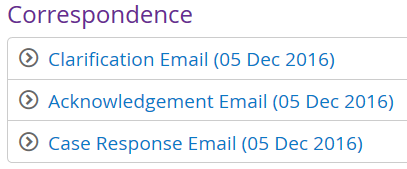
Select the arrow icon to expand the information and view the email that has been sent. This will include how the attachments have been delivered, what type of Secure Share authentication has been requested and when the Secure Share Link will expire. The Secure Share link will now be active. However, you will not be able to view the details as the link is generated for the correspondent to verify their details and access their information.
A copy of the email will also be available in the Documents section.
NOTE If you are the Case Owner and you have the Edit Response Dates privilege on your user account, you will have the ability to change the date the response was sent. Click on the edit pencil icon at the end of the Date Response Sent field, amend the date and click on the Save button. The sent date will have changed.