
Print
Secure Share - What does a correspondent see?
Secure Share allows you to send out files securely or send out large files for the correspondent to download. As the link is secure, you will not be able to see what the correspondent sees. The following details provide an overview of what the correspondent will receive and see. The text in the images may vary depending on your Organisations email template and Secure Share configuration.
- Case Response email
As a minimum, the email template will contain the secure link and the date and time when the files will be deleted from the secure link. These come from the mail merge fields ([[SECURE_SHARE_LINK]] and [[SECURE_SHARE_DISCLAIMER]]) that you added in your email template.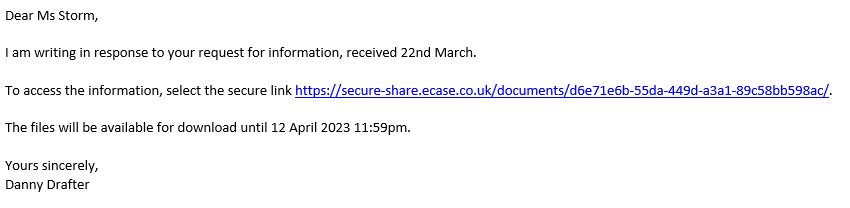
- Secure Share link
When the correspondent selects the secure link and you have selected that they verify themselves, they will be shown standard text. The text will vary depending on whether they have a telephone number on their Correspondent Details or not.
Correspondent Details Secure Share link Telephone Number 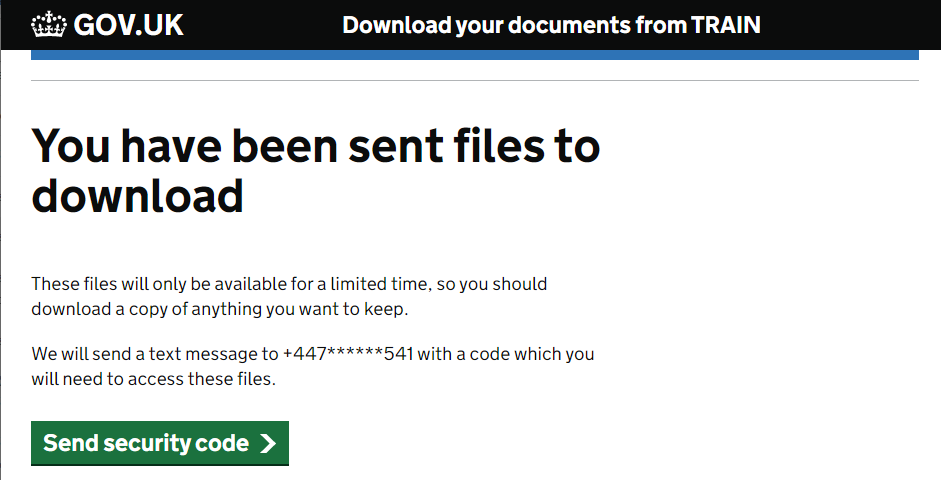
No Telephone Number 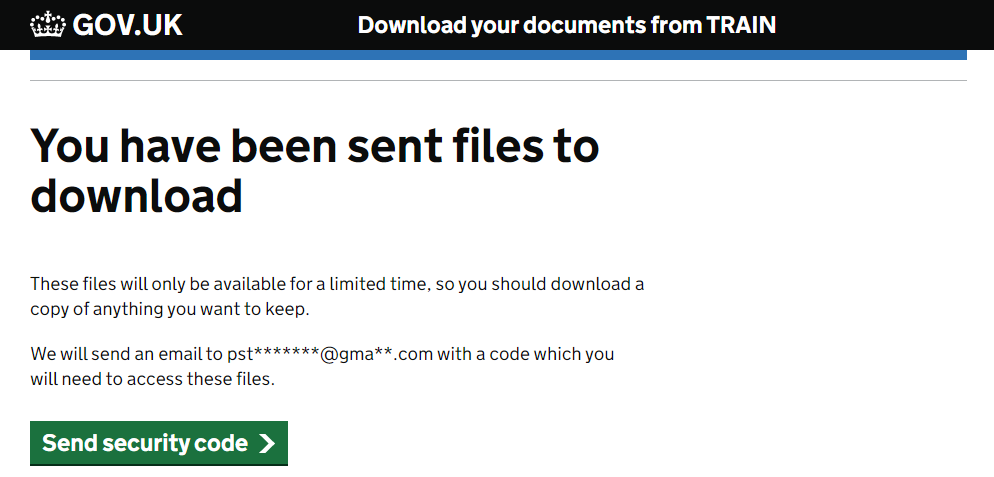
- Security Code screen
The next step will be for the correspondent to select the Send security code button. When they select the button, they will move to the Enter your security code screen. The text will vary depending on whether they have a telephone number on their Correspondent Details or not.
Correspondent Details Security Code screen Telephone Number 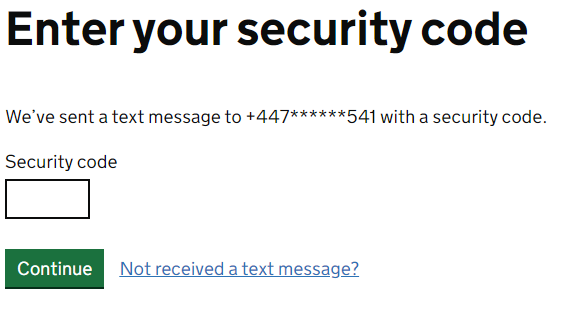
No Telephone Number 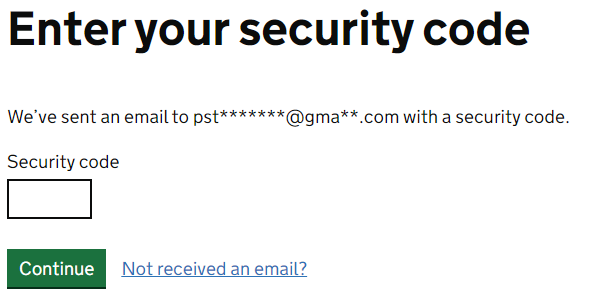
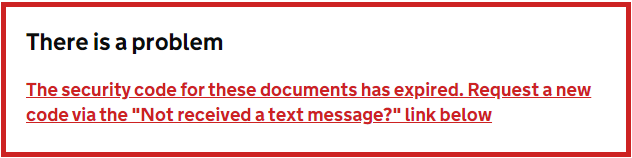
- The Security code will expire after 15 minutes. If it does expire, the correspondent will see the following message advising them to select the Not received a text message? or Not received an email? link.
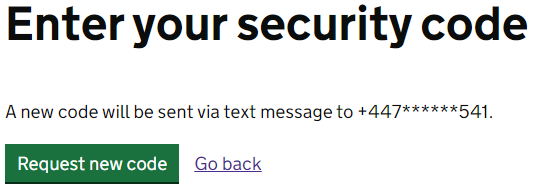
- Once the link has been selected, they will be taken to the Enter your security code screen again, where the message states a new code will be sent. The correspondent will select the Request new code button.
- The correspondent will enter the code in the Security code field and select the Continue button. They will be taken to the Download your documents screen.
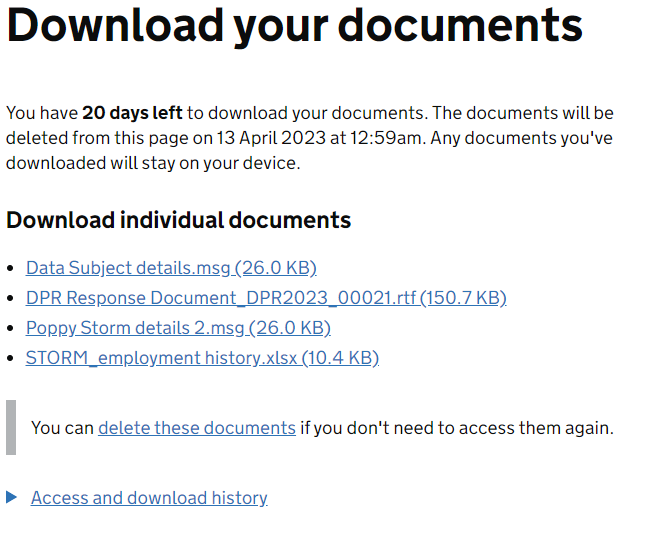
Download your documents screen Description Download individual documents All of the files that have been attached to the response will be shown on the screen. The correspondent will select each of the document names and download them to their computer to view. Delete these documents Once the documents have been downloaded, the correspondent has the option to delete the documents from the secure link. If they don't select the delete these documents link, the documents will be deleted from the Secure Share on the date and time stated on the download your documents screen. Access and download history The correspondent can select the Access and download history link to view the date and time a document has been downloaded, what the document is and what browser was used. - What can I do if a correspondent calls me with a question about accessing their documents?
Question Action I have not received my response email - Check that the correspondents email address is correct.
- Reopen the case (if it is closed) for case data update. If required, amend the correspondents email in the Correspondent Details section
- Prepare a new Response, preview and then send the response
- Close the case
- Check that the correspondent has received the response email and can follow the steps from step 1 above.My code is invalid or has expired - Advise the correspondent that the code is only valid for 15 minutes
- Walk the correspondent through how to request a new code if they don't receive the message in Step 4:
- Open the response email and select the secure link
- Select the Send Security Code button
- A new code will be sent to their telephone number or email and they can proceed from Step 3.
- If the correspondent does receive the message in Step 4:
- Select the Not received an email? or Not received a text message link?
- Select the Request new code button (Step 5 above)I have not received the secure code to my telephone - Check that the correspondents telephone number is correct on the Correspondent Details section on the case
- Reopen the case (if it is closed) for case data update. If required, amend the correspondents telephone number in the Correspondent Details section
- Prepare a new Response, preview and then send the response. This will then send a new secure link with the correct telephone number associated to it.
- Close the case
- Check that the correspondent has received the new response email and that they receive a security code to their telephone number when they have selected the Send security code button (Step 2 above)The secure link is no longer active - If the response has been sent over 20 days ago, the link will become inactive as the files will be deleted from Secure Share
- Reopen the case (if it is closed) for case data update
- Prepare a new Response, preview and then send the response
- Close the case
- Advise the correspondent that a new response email has been sent and that the new secure link will be valid for 20 days