
Print
Send Response via email outside of eCase
If you are sending the response out via email, but outside of eCase, follow the steps below.
- Ensure that Email is selected in the Respond By field.
- In the Offline Response field, place a tick in the Respond by email outside of eCase tick box.
- Optional: Enter any details about the response in the Response Details field. For example when the email was sent and who sent it.
- In the Date Response Sent field, enter in the date when the response was sent using the calendar icon.
- Click on the Mark as Sent
A message appears telling you that the email response has been sent. A banner appears telling you that one case response has been sent. To view the response details, go to the Correspondence section on the Case Details screen.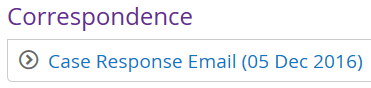
Click on the arrow icon to expand the Response Email information and to view any Standard Lines that were used in the Response.