
Print
How do I link a case?
When a new case is added onto eCase you have the opportunity to search for any cases that are similar in nature to it. This can be through the key terms used or the contact details. It allows you to view historical information, provide consistent responses or see where multiple requests have been made by the same correspondent.
To view similar cases and link them to your new case, follow the steps below.
- Sign into eCase. Refer to the How to Sign into eCase section.
- Go to your Workbasket and click on the Manage link, in the Actions column, for the case you would like to check if there are any similar cases to link to. Or, create a new case.
- On the left menu, click on the Linked Cases
(0) link.
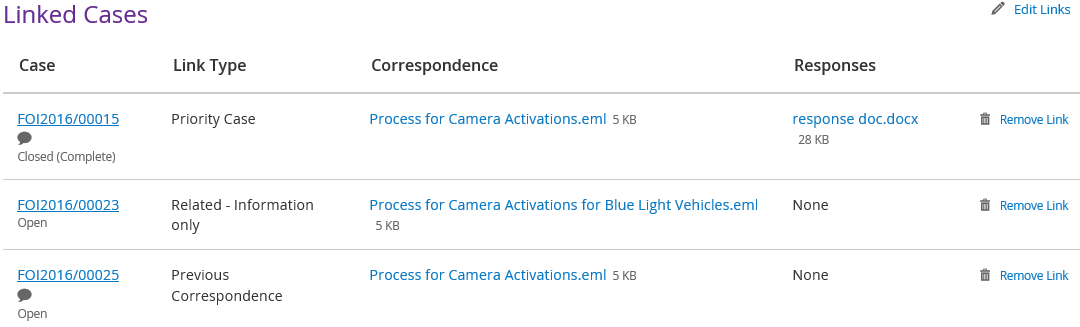
Field Description Case Will provide the case reference number as a link that you can click on to view the case details. It will tell you whether the case is closed, complete, open or reopened. Link Type Select from one of the Link Types by clicking on the drop down arrow. These will allow you to categorise the significance of the link.
Normal: no priority to the linked case.
Simultaneous Release: the linked case holds information that is of wider public interest and should be published at the same time as responding to the original correspondent.
Priority Case: Use to link a case so that the case shows on the banner on the Case Details screen.
Previous Correspondence: use to show that the linked case is previous correspondence from the same person.Comment Add a free format text comment to say why the case has been linked. Once saved, the speech bubble will appear next to the case reference number 
Correspondence Review all of the correspondence documents that are attached to the linked case. Responses Review the response document for any closed or reopened cases. Remove Link Click on the remove link to delete the linked case. Edit Links Click on the edit links link to update information on the linked cases. - Review any similar cases in the Suggestions
for Linked Cases area. Click
on the Case Ref number to review the
case details and the links to the Correspondence
and Response documentation.
- To link a case, place a tick in the Select tick box.
- Click on the Link Selected button to add the selected case to the Linked Cases area.
- Select the Link Type by clicking on the drop down arrow.
- Add in a comment in the Comment
field as to why the case has been linked.
Click on the Save
button.
Anyone reviewing the case will now see that there are cases relevant to this case Linked Cases (3) and will see the priority of the cases on a banner at the top of the majority of the case screens.