
Print
How to identify and delete a draft case
When a new case is created in eCase, the information is automatically saved in a draft format. This is the only time you are able to delete a case off eCase.
To identify a draft case on your Workbasket, you will see the new case in the My Work tab with the following descriptions.

|
Field |
Description |
|
Case Ref |
Not yet allocated |
|
Status/Due Date |
Draft |
|
Information |
Create Case |
|
Actions |
Resume |
To delete a draft case, follow the steps below.
- Sign into eCase. Refer to the How to Sign into eCase section.
- In you Workbasket, identify
the draft case you would like to delete and click on the
Resume link.
NOTE if you have the monitor draft cases privilege on your user account, you will have access to the Draft Cases tab. Click on the View Case link and reassign the case to yourself using the Reassign button. The case will now appear in you My Work tab, with the Resume link. - On the Create Case
tool bar, select the Delete Draft button.
A warning message appears confirming whether you want to delete the
draft case.
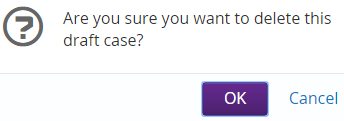
- Select the OK button. The draft case is permanently deleted from eCase and is removed from your My Work tab in the Workbasket.