
How to add Standard Lines to a case
Standard Lines are lines of prepared text which can be used as part of a response to a correspondent. They can either be entered as a text line/paragraph or as a whole template document, like a pre-prepared letter. They automatically appear based on the Key Terms or Group/Team assigned to the case, or can be manually selected.
Standard Lines can be accessed at the bottom of the Case Details screen for a new unallocated case.

|
Field |
Description |
|
Refresh this list |
As you start to enter the case details, click on the refresh this list link to search for any standard lines that match the case information.
If any Standard Lines match, they will now appear in a list where you can select them to be used in the draft response to the case. |
|
Search all standard lines |
Click on the link to manually search for any Standard Lines that can be used in the draft response to the case. |
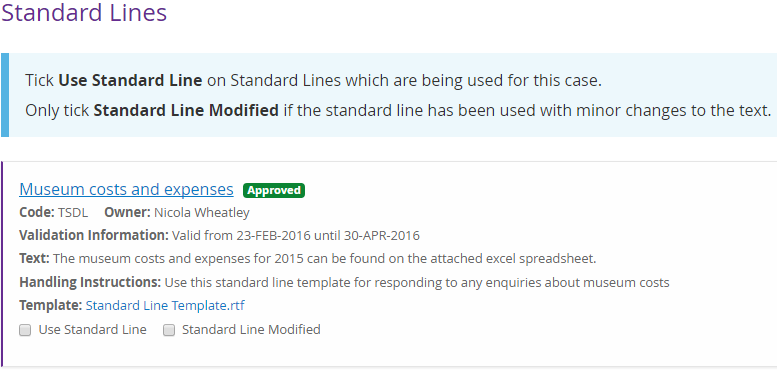
Once Standard Lines have been matched to the case, they will appear below the Standard Lines section.
|
If you want to… |
Then… |
|
Use the standard line |
Place a tick in the tick box next to the Use Standard Line field. Multiple standard lines can be used for the response. |
|
Use the standard line, but add in modifications |
Select the Standard Line Modified tick box if the standard line has been used with minor changes to the text. TIP the text can be altered during the download response template stage in the Response menu. If the text is changed, make sure that this box is checked so that a report can be run to see how often the same standard line of text is changed. It will be used to indicate if the standard line wording has to be changed, or a new standard line added to the system. |
|
+ Add more standard lines |
Select the Add more standard lines button to view additional standard lines. To select multiple lines, place a tick in the box next to Select Standard Line, then click on the Return Selected button. |
|
Show only the standard lines selected |
Click on the Show used standard lines only link. TIP to reverse this and see all standard lines, click on the Show all standard lines. |
NOTE Standard lines are optional and can also be added during the Prepare a Response stage of the process. Once the case is allocated, the Standard Lines can only be viewed within the Prepare a Response section.