
Case Timeline
The case Timeline is available on the Case Details screen. It provides a visual of the key stages of the case. The five most recent entries will be visible on the Case Details screen. To view all of the entries, click on the View full timeline link. The Case Timeline pop up window appears.
The timeline can be sorted by Most Recent First or Oldest First. Click on the drop down arrow to select the order you require. To close the pop up window, click on the Close button.
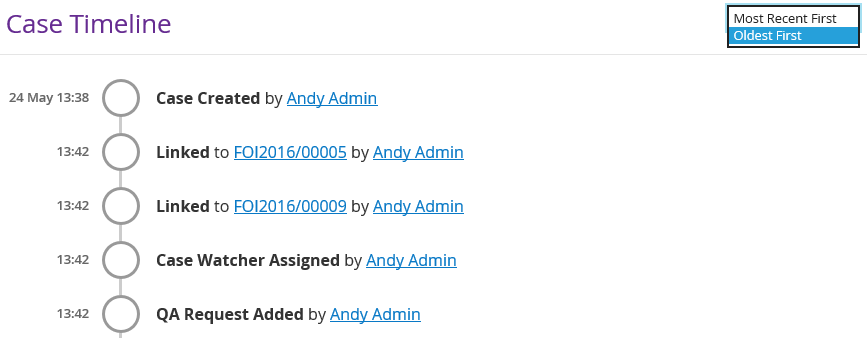
| Field | Description |
| Large white circle | An event has been added or created on the case. |
| Small white circle | An event has been added or created on the case, but it is not as important as the large white circle, for example a case note. |
| Grey circle | An event has been closed on the case. |
| Green circle | A file has been successfully updated onto the case. |
| Yellow outlined circle | Where you are in the case now. |
| Case Ref hyperlink | If you click on the Case Ref hyperlink, it will take you to the Case Details screen for that case. |
| Name hyperlink | Click on the hyperlinked name to get a mailto link. This will activate your default email client on your computer to assist you in sending out an email. |