
Mailboxes on Ministerial Roles
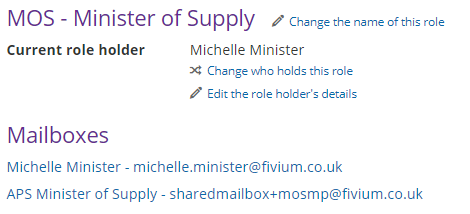
When you enter a ministerial role, there is a section for Mailboxes. There are two mailbox types that can be used for Private Offices, both are for quality assurance requests. One for the Minister, the other to send a QA request to the Assistant Private Secretaries team mailbox.
NOTE If you do not use these QA options you can leave the Mailboxes field empty.
On the ministerial role, you can view these mailboxes. If you want to add or modify a mailbox, you will do it in the Mailboxes screen.
Add a mailbox to the ministerial role for the first time
- Select the More menu and go to Mailboxes under the Settings section
- Select the Add new mailbox button
- In the Email Address, enter the email of the Minister or the Assistant Private Secretaries team email address.

- In the Sender Name, enter a description of the email address so that you can easily identify it on the ministerial role screen. For example the name of the Minister, or Assistant Private Secretary email address

- Select the Add a mailbox rule button
-
If you want to… Then… Create a Ministerial QA email - In the Select a Mailbox Type field, select the drop down and choose Receive Ministerial QA .
- In the All teams field, select the drop down and choose the relevant Private Office. Alternatively, place your mouse in this field and start to type out the name of the Private Office to reduce the list.
When you are in a case and want to send a QA request to the Minister, their email address will appear in the Recipients field.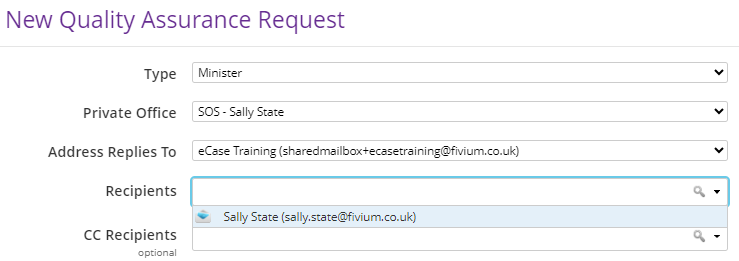
Create an Assistant Private Secretary team QA mailbox - In the Select a Mailbox Type field, select the drop down and choose Receive Group QAs.
- In the All teams field, select the drop down and choose the relevant Private Office. Alternatively, place your mouse in this field and start to type out the name of the Private Office to reduce the list.
- in the All case types field, leave on the default for all case types, or select the drop-down to choose the relevant case types. - in the All QA types field, select the drop down and choose the Assistant Private Secretary QA
When you are in a case and want to send a QA request to the Assistant Private Secretaries team mailbox, select the Send to All option.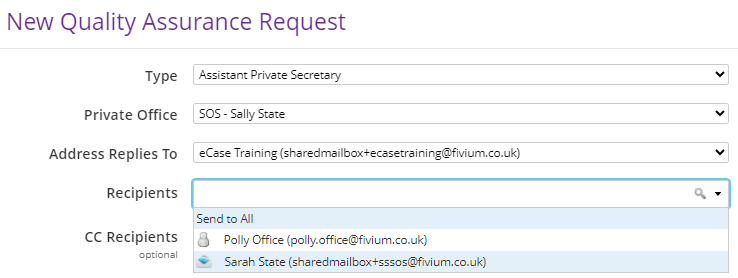
- Select the Save button.
- To go back to the ministerial role screen, select the More menu, then Ministers in the Reference section.
- Select the name of the ministerial role you want to review.
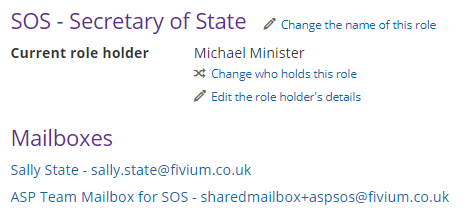
- In the Mailboxes section you can now see the Minister mailbox and the Assistant Private Secretary team mailbox.
Change the Minister or Assistant Private Secretary mailbox details
When a ministerial role is updated with a new role holder, or the email details change, you will need to amend the details on the ministerial role. To update the details, you can do it directly in Mailboxes as the steps above, or via the ministerial role screen. The advantage of updating the information from the ministerial role screen is that once the details have been updated, eCase will bring you back to the relevant ministerial role.
- Select the eCase More menu, then Ministers in the Reference section.
- Select the name of the ministerial role you would like to change.
- Go to the Mailboxes section and select the email address you want to update.
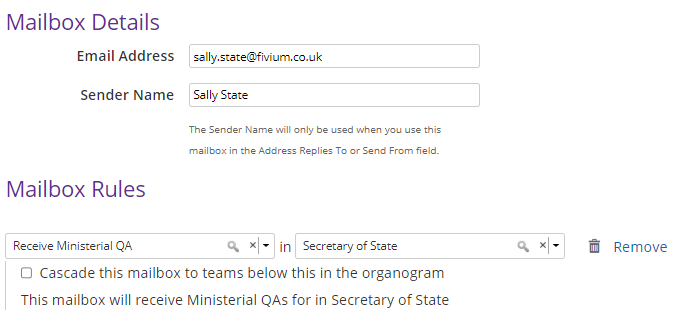
- You will be taken directly to the Mailbox Details for the email you selected. Update any of the information. For example, if this is a new Minister, enter in the new Email Address and their Sender Name.
- Select the Save button. You are taken back to the ministerial roles screen.