Print
How to change the current role holder associated to a Ministerial Role
When there is a cabinet reshuffle and Minister’s change roles, the Minister assigned to a specific ministerial role will need to be updated. This is important for reporting. Reports can track who has been in a specific role, what cases have been assigned to that role or what cases have been assigned to a specific Minister across multiple ministerial roles.
To change a Minister attached to a ministerial role, follow
the steps below.
- Select the eCase More menu, then Ministers in the Reference section.
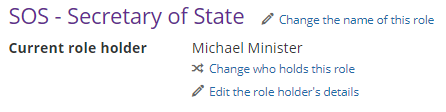
- Select the name of the ministerial role you would like to change.
- Next to the Current role holder field, select the Change who holds this role link.
- The Change the person who holds this role pop up window appears. In the Date they left the role field, use the calendar icon to choose the date the previous role holder left the role.
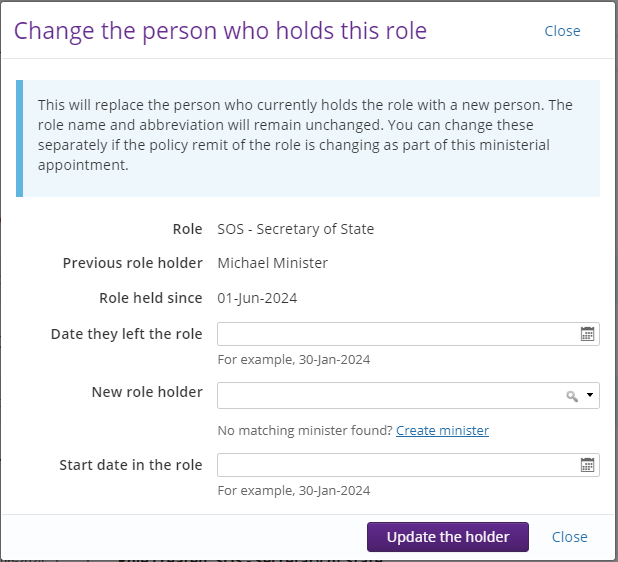
- To add the new role holder to the ministerial role, select the drop-down arrow at the end of the New role holder field. Check if the Minister has previously been added to eCase. If not, use the Create minister link to add in a new Minister to eCase.
NOTE If the Minister is replaced, all open cases will still reflect the old Minister in that role. If you would like these cases to reflect the new Minister in the role, these will need to be manually changed. All closed cases will retain the previous Minister's details for reporting purposes. - In the Start date in the role field, use the calendar icon to select the date when the new role holder starts in the position.
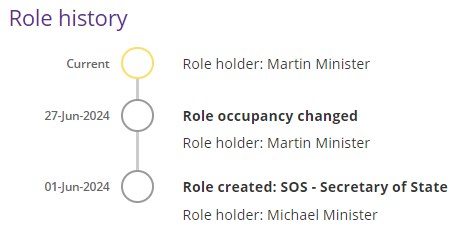
- Select the Update the holder button. The new Minister’s details appear in the Current role holder field. The history of the Minister's in the role can be seen in the Role history section.