
Print
How to restore a Ministerial Role
Once a ministerial role has been archived, it will be hidden on the Ministers screen. If you want to view previous ministerial roles, select the Show Former Positions link. The archived ministerial roles will show with a Former Position icon.

- Select the eCase More menu, then Ministers in the Reference section.
- On the Ministers screen, select the Show Former Positions link. The Archive ministerial role pop up window appears.
- Select the Restore link. The restore ministerial role pop up window appears.
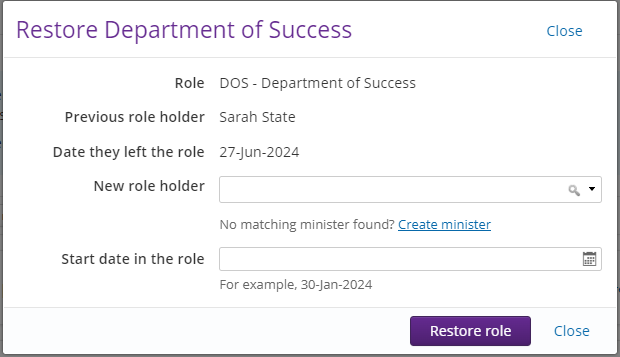
- In the New role holder field, select the drop-down and find a Minister's details, or select the Create minister link to add a new Minister to eCase.
- In the Start date in the role field, select the calendar icon to add in date the Minister started in the role.
- Select the Restore role button to confirm the details.