
Add a New Team to the Organogram
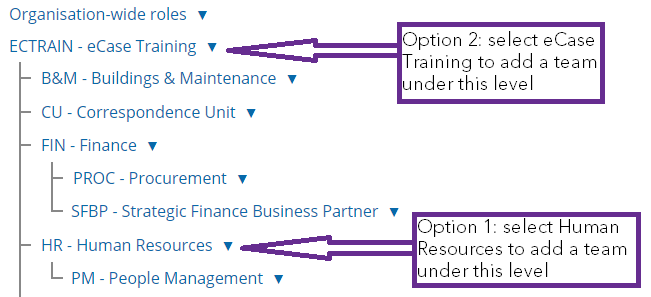
To add a team to the organogram, select the name of the team where you would like the new team to sit in terms of the reporting hierarchy. For example, based on the organogram below:

The eLearning module will open in a new internet window.
- How to add a new team to your Organogram (duration = 11 minutes)
- Option 1: If I wanted to add a new Employee Relations team and they reported into Human Resources, I would select the Add Subteam button at the Human Resources level.
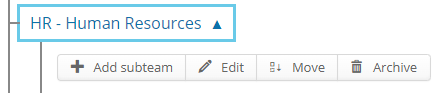
I can then report on the Employee Relations team by itself, or as part of the Human Resources team along with People Management. - Option 2: If Employee Relations was a department that did not report into any other area, I would select the top level of the organogram, eCase Training, and select the Add Subteam button.
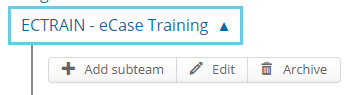
I can then report on the Employee Relations team by itself or as part of the whole eCase Training organogram
The Organogram will also allow certain roles, like the drafter role, to cascade down to lower levels of the structure. For example, if Employee Relations reports into Human Resources, I can add my drafters at the Human Resources level and they will be able to respond to cases for both Employee Relations and People Management. If the drafter is added at the Employee Relations level, they will only be able to respond to those cases allocated to the Employee Relations team.
To add a new team to the organogram, follow the steps below.
- Sign into eCase. Refer to the How to Sign into eCase section.
- Select the eCase More menu, then Organogram in the Settings menu. The Organogram screen appears.
- Select the team in the structure where you would like to add in the new team. The action buttons become available.
- Select the Add subteam button. The Add subteam pop up window appears.
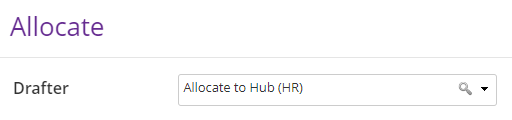
- In the Short name field, enter a short code that abbreviates the team name. It will appear before the team name and on certain screens, for example when allocating to a hub.
- Type the full name of the team in the Name field.
- Select the Create button. A banner will confirm the name of the team that has been created.
If the... Then... Short name has been used before A message will appear stating that the Short name already exists. 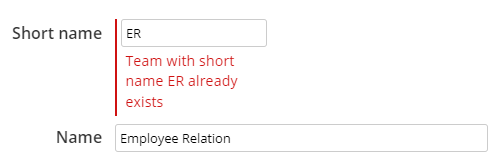
Either amend the Short name to a unique code, or investigate which team is using that code now and review if the other team's short code should be changed.
Name already exists in the Organogram A message will appear stating that the team with that name already exists. 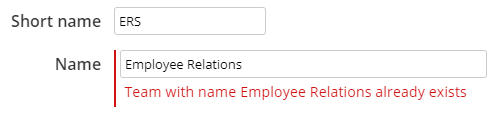
Use the Filter by Team name field to find the team. Review and amend details. If you cannot find the team in the active Organogram, select the Show Archived link and filter again. Restore the team if required.