
Print
Restore a Team
When teams are archived in an organogram, they are hidden from view. The historical data is kept so that you can continue to report on that teams activities. If the team has been archived by accident, or needs to be reintroduced at a later stage, you can do this by restoring the team details.
- Go to the More menu and select Organogram in the Settings column.
- On the toolbar, select the Show Archived link. All teams will then have an Active or Archived logo next to their name.
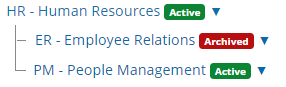
- Scroll down the Organogram to find your archived team. If your Organogram is big, use the Filter by Team Name function.
- Select the name of the archived team to view the Restore action button and the archived team members.
- Select the Restore button.
- A message appears asking you to confirm that you want to restore the team. Select the OK button.
- The team is now active. You will see the four action buttons: Add subteam, Edit, Move and Archive.
Action Description Review the team members Select the name of the team to refresh the screen. The Add People fields become available. Add new team members, assign new roles and delete users that are no longer part of the restored team. Review the mailboxes associated to the team Go to the Mailboxes screen and use the search by Team field to see if the team had any mailboxes previously configured. Add any new mailboxes that are required, or edit any old mailboxes. Review hierarchy of the team Move the team in the Organogram based on the new reporting lines for the restored team.