
eCase Help
  • Home
  • Create a New Case
  • Allocate and Manage a Case
  • Contribute to a Case
  • Respond to a Case
  • Quality Assurance
  • Close a Case
  • Appeals
  • Search, Statistics and Reports
  • Additional Case Types
  • System Management
    • Automated Reminders
    • Document Templates
    • Email Templates
    • Key Terms
    • Standard Lines
    • Organogram
    • Mailboxes
    • People
      • Search for People
      • View the role's details
      • Delete a role from a user's account
      • Add a role to a user's account
      • Add an admin privilege
    • Roles
    • Field Value Options
    • Audit Log Search
    • Case Reassign
    • Case Retention
    • Case Options
  • eCase Features and Benefits
  • Register
  • Workbasket Overview
  • Log Out
  • eCase Support
  • Batch Responses
  • eCase Accessibility Statement
  • SAML Single Sign On
  • IP Whitelist
  • eCase Online Learning
  • Webform Submissions
  • eCase Automate
  • Onboarding eCase
  • Did you Know?
Print

How to delete a role from a user's account

If you would like to delete a role from a user's account, but don't know what team they are in, you can use the People screen to perform this action.

  1. Search for a person and click on their name to access their user account details.
  2. Identify the role you would like to delete from the user’s account and click on the Remove link.
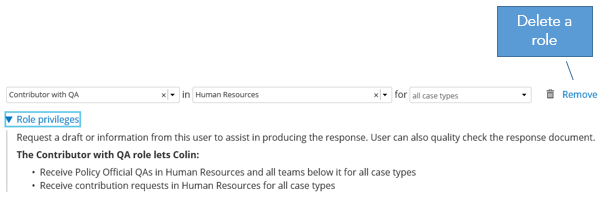
    Select the Remove link to delete a role from a users account
  3. Save the user account details by clicking on the Save button.

View the role's details

Add a role to a user's account

eCase Online Learning
Accessibility Statement

Contact Us

support@ecase.co.uk

Fivium

© Fivium Limited