
Print
How to add a role to a user's account
To add a new role to a user's account from the People screen, follow the steps below.
- Click on the People link and search for the name or email of the person.
- Access the person’s details by clicking on their name.
- Under their roles, click on the Add a role button.
- In the Select a role field, click on the drop down arrow to search for the name of the role, or start to type the name of the role. A list of the roles that match the typed entry will appear. Select the role that is required.
- In the all teams field, you have the
option to allow this user to have this role for all teams, or a specific
team. To select an individual team,
click on the all teams drop down arrow and choose a team from the list. If you know the name of the team, start to
type the name and a list of teams that match the typed entry will appear. Select the relevant team.
NOTE: If you would like to add the person to the role in multiple teams, select the Add a role button to add a new entry on the persons account. - If the role is applicable to all case types, leave the all
case types
field blank. If you would
like to associate a role to a specific case type, click on the
all case
types
drop down arrow and select an individual case type.
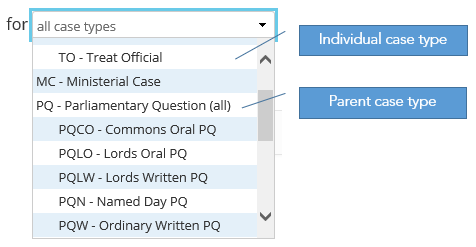
NOTE: If you would like to add the person to the role for multiple case types, select the Add a role button to add a new entry on the persons account. - To save the details, scroll to the bottom of the screen and click on the Save button.