
Webform Submissions Screen
The Webform Submissions screen is where eCase users with the Manage webform submissions privilege on their user account can view, create and reject requests that have been submitted via their webform and have not been allocated to a team to process.
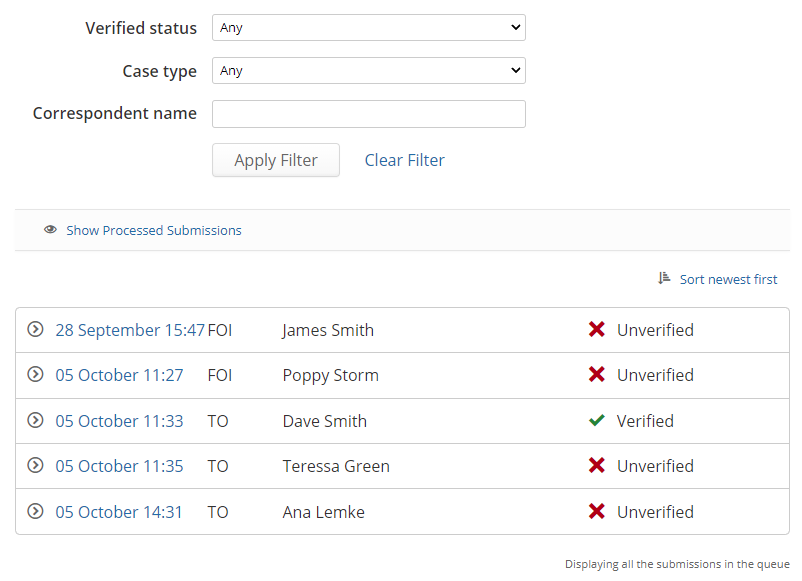
The screen allows users to filter the webform submissions queue in order to process requests that are relevant to their job, for example, filtering on FOI as a case type, showing previously processed submissions and converting a webform submission into an open case.
Filter Options
There are three filter options that can be used to reduce the submissions shown in the queue. As a webform submissions user, I can choose to filter the queue by one or more of the options.
- Verified status - will default to any, so the queue will show both unverified and verified webform submissions.
- Unverified - any case that has been created from a webform submission where the member of the public has not provided an email address.
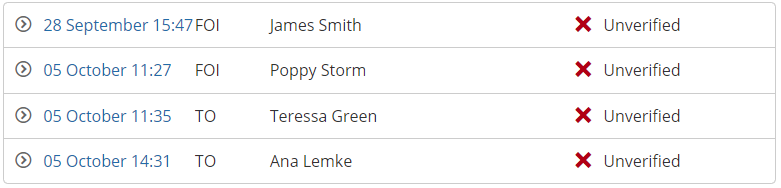
- Verified - any case that has been created from a webform submission where the member of the public has provided an email address and it has been verified as part of the webform submission.

- Unverified - any case that has been created from a webform submission where the member of the public has not provided an email address.
- Case type - as an eCase user, I can filter the queue to show just those case types I am responsible for. The screen shot below shows the TO (Treat Official) case type filter was applied.

- Correspondent name - if a member of the public has contacted you asking if you have received their webform request, but an open case has not been created, you can use this filter to search the queue for matching webform requests based on their name. You can enter part or all of their name to filter the list on. The screen shot shows those webform submissions that match the correspondent name of Smith.

Once the filters have been defined, select the Apply Filter button. The submission queue will reflect the webform submissions that you require.
Remove the filter
Once a filter has been applied, there are two ways to remove it.
1. On the banner that appears above the filtered webform submissions, select the remove the filter link. Once selected, the full list of submissions will be shown.

2. Select the Clear Filter link found under the three filter options.
Show Processed Submissions
All of the filter options will also work on the processed submissions, so if I want to locate a webform submission for example, for a correspondent and it is not showing in the active list of submissions, select the Show Processed Submissions link. This will show all cases that have been created, rejected or are still pending in the queue.
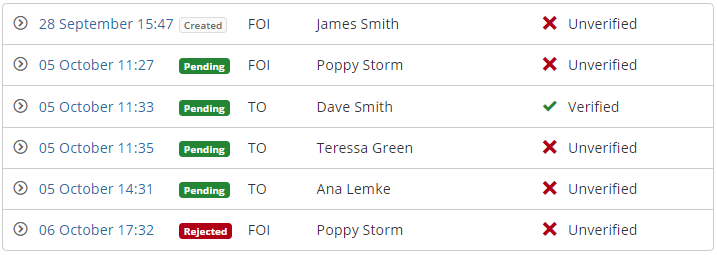
The created or rejected webforms will appear in this processed submissions list for seven days.