
Print
How do I add a user to eCase that hasn't registered yet?
When a person has registered on eCase, their details will appear in the People field. If a user has not registered, for example a new member of the team or a contributor who will respond to your requests via email rather than through eCase, but you would like to assign roles to them, follow the steps below.
- Go to the More menu and select Organogram under the Settings section.
- Click on the name of the team where you would like to add the team member.
- In the People field, start to type the name of the new person, or their email address. To confirm their details, select the green Add name as a new person field.

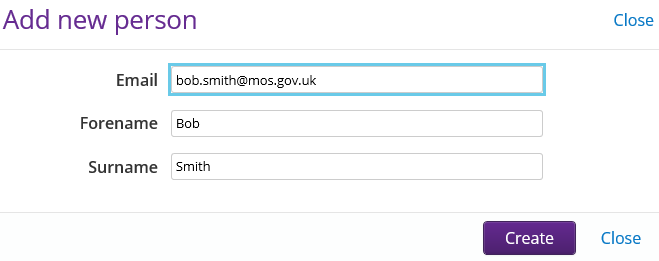
- The Add new person pop-up window appears. Check the details, amend if required and select the Create button. The new team member’s name will now appear in the People field.
- In the Roles field, select which roles this team member is going to be responsible for. One or more roles can be selected.
- In the Case types field, select the case types this user can work on in eCase. If the user’s role isn’t based on a case type, then the Case types field can be left blank. For example, a contributor may provide information for all case types.
- Select the Add button to add the new person to the team.