How to use the Redaction Modes
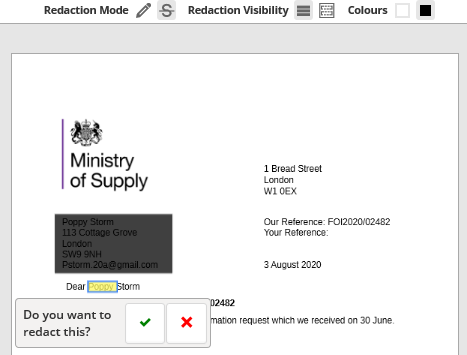
There are two Redaction Modes in eCase Redact:
- Redact by drawing an area - this is the default and is shown by the drawing

- Redact by selecting text - select the letter

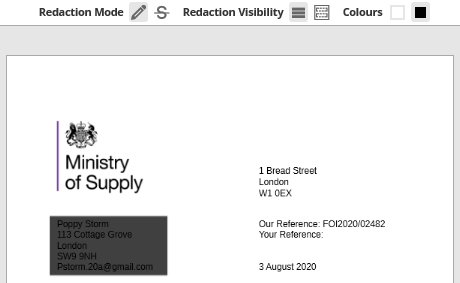
Redact by drawing and area
To Redact by drawing an area, ensure that the drawing icon is highlighted. Place your mouse on the document where you would like to redact, a cross appears. Place the cross at the top left of the text you would like to redact and click and drag the redaction box to cover the redaction area you require.
Redact by selecting text
The second Redaction Mode is Redact by selecting text. This allows you to select text and redact. You can double click on a word to automatically select a word. This is useful if you require consistent spacing in your redactions in relation to the lines of text. Once you’ve selected the text you want to redact, select the green tick to confirm the redaction or the red x to disregard the redaction.