
Print
How to use the eCase Redact search function
Use the search functionality to search for text to redact.
- Click the Search icon on the left menu
- Type in the text you want to search for. A list of search results will appear along with the page number they are on.
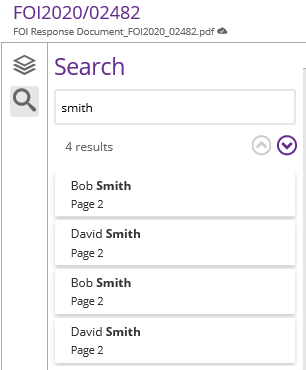
- Select
the first search result you would like to redact. eCase Redact will move you to
the relevant suggestion and highlight the area in yellow.
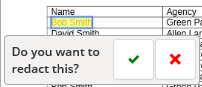
- You are then asked if you would like to redact this section. Click on the green tick if you would like to redact this section, or the red x if you don’t.
- Once
redacted, click on the redacted area and you can add a comment or
exemption/exception to this redaction.
NOTE: the colour of the redaction and the redaction visibility will be based on the settings you have chosen on the eCase Redact toolbar.