
How to add a Comment or Exemption/Exception to a Redacted area
To add a comment, exemption or exception to a redaction, ensure you are in the Redaction Mode of Redact by drawing an area. Select the redaction area in the document.
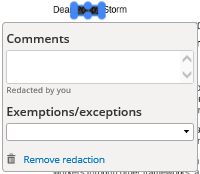
Comments
To add a comment, place your mouse in the Comments field and start to type. The comment will save automatically and can be viewed when you select the redacted area.
Exemption / Exceptions
To add an exemption or exception, click on the Exemptions/exceptions drop-down and search for the relevant one. Alternatively, start to type in the section number, or part of the exemption name to reduce the list options. Click on the exemption or exception required. Repeat the process if multiple exemption/exeptions are required for that area.
To delete an exemption or exception, click on the dustbin icon at the end of the exemption/exception chosen.
Remove redaction
To remove a redaction once it has been added, ensure you are in the Redaction Mode of Redact by drawing and area, and select the redaction area you would like to remove. The Comments & Exemptions/exceptions pop up window appears. Click on the Remove redaction link.