How to Close a Partially Redacted Document
Close a Partially Redacted Document
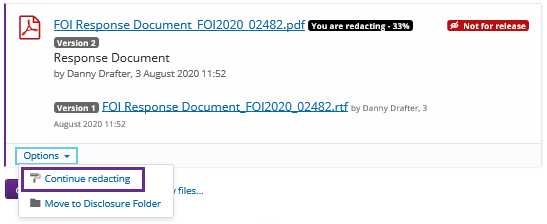
If you are part of the way through redacting a document and you would like to continue the rest later, click on the Close link on the eCase Redact toolbar. By doing this, the document will be locked and only you can continue redacting. Next to the document name, the icon will state You are redacting - X% complete. The percentage complete is calculated from the Mark page as completed tick boxes.

If another user views the document, it will tell them who is redating the document. Only that named user can continue to redact the document.
NOTE: if you would like another person to continue to redact the document, follow the finalising steps, choosing 'No' for the Allow for release questions, otherwise, the document will be locked by the current owner.
Access a Partially Redacted Document
To access a partially redacted document, click on the Options drop-down and select Continue redacting.
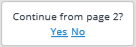
If you are redacting a multi-page document and have ticked the Mark page as completed tick box on several pages, you will receive a message that asks you if you would like to continue from the last page you marked as complete. Select Yes if you would like to skip to this page.