
Print
eCase Redact Screen Overview
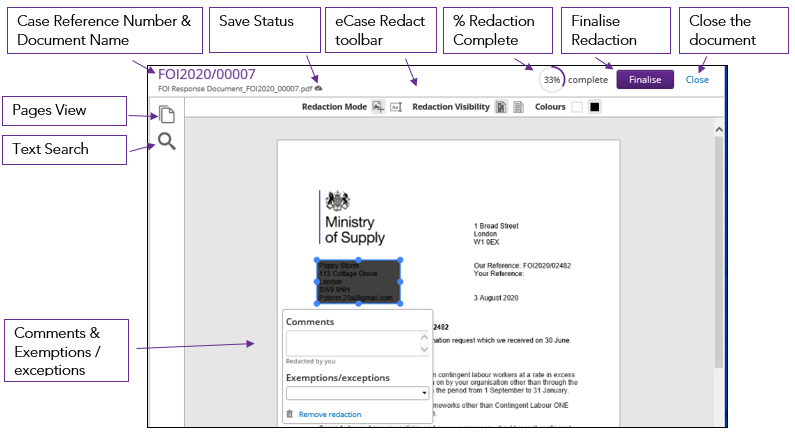
- Pages View - shows you an overview of the pages in the document. You can use this to move to another page, or you can select the Set Filter option to filter the document to show pages that are as yet unredacted, those where redaction has started, but are incomplete and the pages that are composed of an image only.
- Text Search - this allows you to search for text that you might want to redact, for example personal data.
- eCase Redact toolbar
- Save Status - The cloud icon will indicate when the document is saving, and has been saved.
- Redaction Mode - ability to choose between drawing boxes and highlighting text to redact. Highlighting text allows you to be consistent with size of the redaction box and is easier to use for smaller words.
- Redaction Visibility - lets you choose between seeing the redaction as a dark grey overlay or showing with a dotted outline.
- Colours - The colour setting allows you to choose between Blackout and Whiteout redaction. The core difference between the two is that Blackout redaction will show where content has been removed, whereas the Whiteout redaction will completely hide that content. Toggling these options sets the colour of new redactions you create.
- Comments and Exemptions/Exceptions - When a redaction is added to the document, the Comments and
Exemptions/Exceptions
pop up window appears. An internal comment can be added
to the redaction as a reminder as to why that section was redacted, and the
reason for redaction if it relates to an exemption or exception. This pop up window will only appear when using the
Redact by drawing an area mode. If you have redacted using the Redact by selecting text mode, change the Redaction Mode to Redact by drawing an area, and you will be able to enter Comments or Exemptions/Exceptions.
- Visual toolbar - the visual toolbar will allow you to change the zoom level of the document, jump to a page number, or rotate the current page by 90 degress in either direction.
- Mark the page as complete tick box - At the end of each page, you have a tick box to mark that
the page has been completed.

You do not have to use this tick box, but it can be valuable to help track your progress whilst redacting a large document. When the Mark page as completed box is ticked, the percentage completion will be updated on the eCase Redact toolbar.
- Close Redaction - If you are part of the way through redacting a document and you would like to continue the rest later, click on the Close link on the eCase Redact toolbar. By doing this, the document will be locked and only you can continue redacting.
- Finalise Redaction - When the redaction is complete, click on the Finalise button on the eCase Redact toolbar.