
Print
Run a report
To run a report, follow the steps below.
NOTE the parameters of the report will differ depending on the report to be run.
- Sign into eCase. Refer to the How to Sign into eCase section.
- Click on the More link in the eCase menu
- Select Reports
- Select the name of the report under the Report Info column.
- To run the report, click on the Schedule Report Run
· Run Details – enter the name of the report and the time the report is to be run. - Select the relevant Parameters
for the report.
Parameter Description Period Interval Select the period of time the report is to be run for, for example, weekly, monthly, yearly or select a date manually.
If you select Manual, additional fields will become available. Select the Period Starting On and Ending on dates by using the calendar icon.Date in period The date in period refers to the date from which the Period Interval will be calculated. For example if monthly is selected and a date in period of the 14th March, then the system will produce the report for the 1st March to the 31st March. Department (available on all FOI Reports except FOI Case Summary) Automatically defaults to All. This cannot be changed. - Enter the Run Details
for the report.
Run Details Description Title Enter a name that will identify the report in the Run History list on the Report Info screen. Notes Optional: enter any notes about the report. Run Later? Place a tick in the tick box if you would like to schedule the report to run later. Then select a run date by clicking on the calendar icon. - Submit the report.
If you… Then… Want to schedule the report to run at a later time and have used the Run Later? section Click on the Run Later Want to run the report now Click on the Run Now button.
The Run History screen appears, with the new report at the top of the list. The Status of the report will say Pending - To access the report, click on the name of the report under
the Title column.
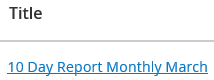
The Report Output screen appears where you can view the report by clicking on the View Spreadsheet