Print
Delete a report
If you do not want the report to appear in the Run History screen, then you can delete the run report.
- Sign into eCase. Refer to the How to Sign into eCase section.
- Click on the eCase More menu.
- Select Reports
- Select the name of the report under the Report Info column.
- In the Run History screen, select the report you would like to delete by clicking on the name of the report under the Title column.
- Click
on the Delete Run button.
The report will disappear from the Run
History screen.
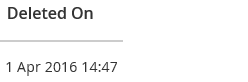
You will still be able to view the run report by selecting the Show Deleted Runs link on the Run History screen. The date the report was deleted will be shown under the Deleted On Column.