Search

The eLearning module will open in a new internet window.
- How to use the Search toolbar feature (Duration = 9 minutes).
Search is an eCase feature that allows you to search across any text on a case. For example, correspondent name, Case Reference number or text from a case or a case document. This includes text within scanned documents.
The Search feature can be found on the eCase menu bar.

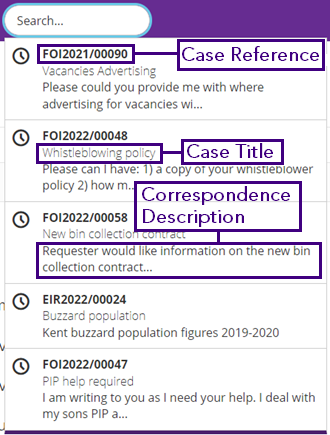
The Search field will show you the last five cases you have viewed or accessed.
To see the last five cases, place your cursor in the Search field. A drop-down list of the cases will appear. It will show the Case Reference Number, the Case Title and the first line of the Correspondence Description field.
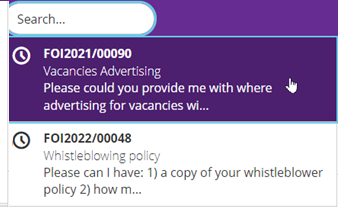
To access one of these cases, move your cursor over the relevant case. It will be highlighted in purple and your cursor will turn into a hand icon. Select anywhere within this highlighted area to enter the case and view Case Details.
NOTE If you do not have the correct privilege to view the case, you will be presented with an Insufficient Privileges message explaining that you do not have the right privileges to access the case.
To search for a case or cases that hold search terms, you can use a variety of search criteria. For example reference numbers (Case Reference, Correspondence reference, National Insurance Number, Parliament UIN etc), correspondent name, correspondent postcode, or by text found in the case. The text can be located in the Case Title, Correspondence Description, PQ Question or Answer, Case Notes or in any uploaded documents or emails.
To search, follow the steps below:
- In the Search field, begin to enter your search criteria. The drop-down list will change to the five cases that are the most relevant to your search. If there are more than five cases, a Show full results link will appear at the bottom of the list.
- Areas of the case that match your search criteria will be highlighted in bold text, along with a sentence telling you how many areas of the case your search criteria has been found. For example, found in Correspondence Description, Case Title and 3 more places. To view the full case details select the case.
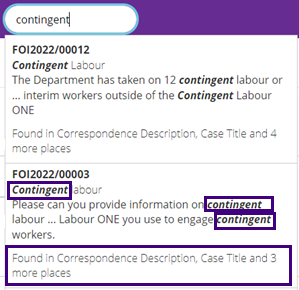
- To view the additional cases that match your search criteria or to narrow down the search, select the Show full results link at the bottom of the results list. You will be redirected to the Search screen.
- The Search screen provides you with additional filters that will enable you to narrow your search results.
Filters Description Search Term Your original search criteria will be pre-populated in the Search Term field. Edit the details as required. Case Type Narrow your search by selecting the individual case type or parent case type. Select the drop-down arrow to select one or more case types. Date Received If you want to search for cases received between certain dates, enter the from and to dates using the calendar icon. Case Status Use if you want to show any case status, only those cases that are open, or those that are closed. Group/Team Select the drop-down Group/Team arrow to select a team from the Organogram, or start to type in the name of the team to narrow the list available. Only one team can be selected, but if that team has sub-teams, the search will take into account those sub-teams. - Once you have entered additional search criteria, select the Search button. The updated search results will appear in a list. The approximate number of search results will be shown, with the first ten cases appearing on this page. To view another ten, select the Show more results link at the bottom of the search results.
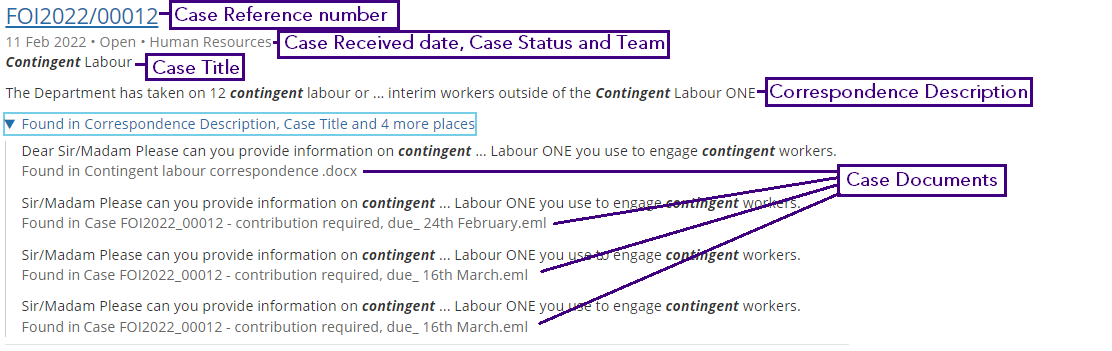
NOTE Continue to use other reporting options, like Bulk Reports or Case Search to produce statistics. - Each search result will show the Case Reference number, the Case Received date, Case Status, the team the case is with, the Case Title, and the first line of the Correspondence Description. A Found in drop-down is also available. This will detail the areas of the case where your search criteria has been found. Matches to the Search Term will be shown in bold.
Select the Case Reference number to review the case details.