Documents link
When you select the Documents link, the List View is the default view. All documents on the case are listen in date order. You can upload documents to this screen, amend and modify the documents, see when they were uploaded or sent to/from the case and whether they are allowed release or not. Multiple actions can be done from this screen, for example downloading documents into a zip file, moving documents into a folder in order to categorise them, merging documents into one file and redacting using eCase Redact.

The eLearning module will open in a new internet window.
- How to view, sort and filter the Documents screen (duration = 10 minutes).
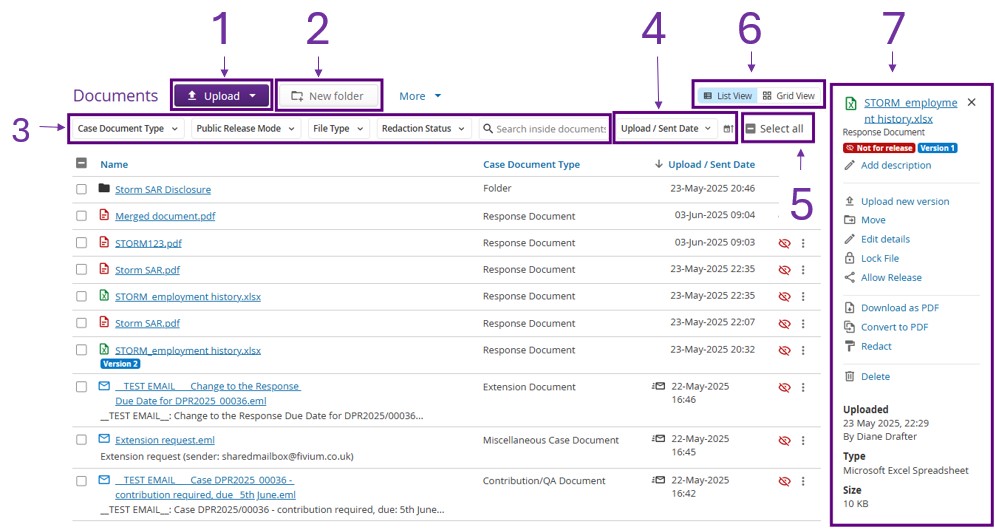
| Image Key |
Field |
Description |
| 1 | Upload |
Select the Upload button to upload one or more documents for the same Case Document Type, for example Response Document type. |
| 2 | New folder | Selecting the New folder button will allow you to add one or more document folders to the Documents screen. You can use the folders to group similar documents together, for example, the documents you want to disclose with the response. |
| 3 | Filters | There are a number of filters available on the Documents screen so that you can view a smaller list of documents.
|
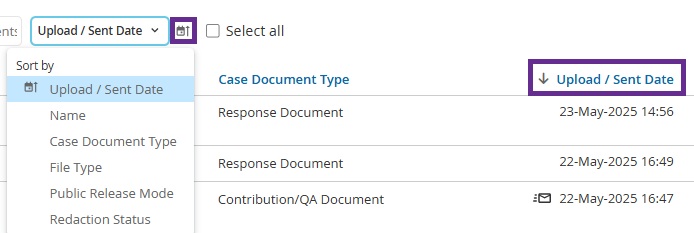
| 4 | Sort |
Select the Sort by dop-down list to choose a column that you would like to sort by. When you choose the column, you will get an arrow next to the column name. Use the Sort icon to control whether you want to see the column sorted ascending or descending.
|
| 5 | Select all | Use the Select all tick box to select multiple files in one go. For example if you have filtered the screen using the Case Document Type and selected Response Documents, I can then select all and merge the documents into one. |
| 6 | Documents View |
The default view when you go into the Documents screen is List View. You see a list of all documents and their properties in date order. You have the choice to change this view to a Grid View. If you change your preference of view, it will change it for all of your case types in your Workbasket. |
| 7 | Document Actions |
When you select a document, or select the three dots at the end of the document line, the Documents Actions section appears. This is where you can manage actions for the one document, or multiple documents if more than one is selected, for example changing the Case Document type, moving the document to a folder or merging multiple documents into one. |