
Print
How to view a mailbox from the Organogram
Once an email has been created using the Mailboxes link, it can be viewed via the Organogram link for the team it was created for.

The eLearning module will open in a new internet window.
- How to view a mailbox from the Organogram (duration = 10 minutes)
To view a mailbox, follow the steps below.
- Go to the More menu and select Organogram under the Settings column. The Organogram screen appears.
- At the top of the Organogram, there are two tabs. One titled Teams, the other Mailboxes. Select the Mailboxes tab. A list of the teams that make up your organisation structure will appear.
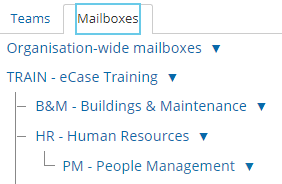
- To view a mailbox that has been set up for a team, select the name of the team to expand the mailbox details. A list of the Mailboxes will be shown.
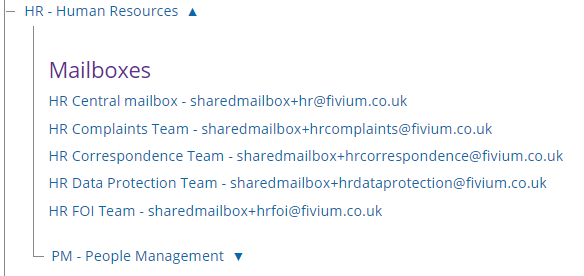
- To view the mailbox details, select the name of the mailbox. This will take you to the Mailboxes screen where you can amend the Mailbox Details, Mailbox Rules or delete the mailbox.