
Print
How to re-order your Field Value Option set
By default, the field value option set list will be ordered alphabetically. The Order options alphabetically tick box is automatically selected for you. However, if you use some of the options more frequently than others, you can rearrange the list of options into your preferred order.

The eLearning module will open in a new internet window.
- How to filter, add, edit and reorder Field Value Options (duration = 14 minutes)
To do this, follow the steps below.
- Go to the More menu, then select Field Value Options from the Settings column.
- Select the title of the field value option set you would like to re-order. All of the options for that set will be shown.
- Deselect the Order options alphabetically tick box. The screen changes to show your two ways to move your options. The three bar icon and the Move link.
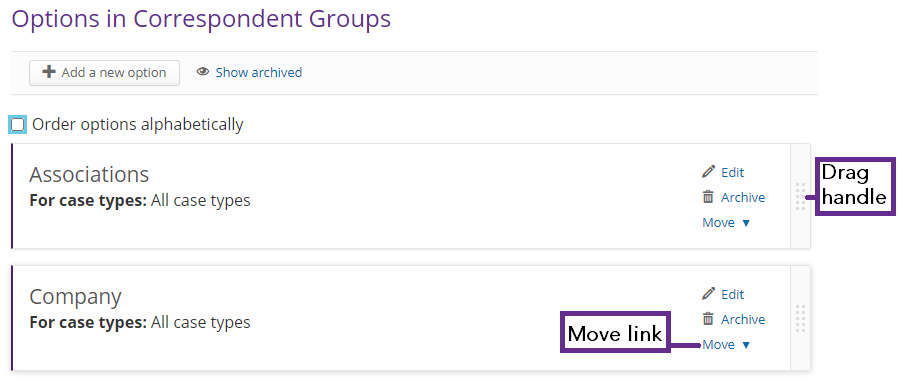
Move Options How to move your option within the Field Value Options set Three bar icon - Place your mouse over the three bar icon. The arrow symbol of your mouse will turn to a hand symbol.
- Select the three bar icon to drag and drop the option to the relevant place on the list.Move link - Select the move link to show the direction commands to Move to top, Move up, Move down or Move to bottom of the list. The Move up or Move down will move one place in the list. - To save the option set, select the Save button. You will be taken back to the Field Value Options screen. The changes made to the option set will now show in the drop-down list for that field on Case Details.
To reset the list to alphabetical order, select the Order options alphabetically tick box, then the Save button.