
eCase Help
  • Home
  • Create a New Case
  • Allocate and Manage a Case
  • Contribute to a Case
    • New Contribution Request
    • New Record-only Contribution
    • Completed Contributions
    • Respond to a Contribution Request
      • Access a Case
      • Contribution Page
      • Submitting your Contribution
      • Reply to All email Request
  • Respond to a Case
  • Quality Assurance
  • Close a Case
  • Appeals
  • Search, Statistics and Reports
  • Additional Case Types
  • System Management
  • eCase Features and Benefits
  • Register
  • Workbasket Overview
  • Log Out
  • eCase Support
  • Batch Responses
  • eCase Accessibility Statement
  • SAML Single Sign On
  • IP Whitelist
  • eCase Online Learning
  • Webform Submissions
  • eCase Automate
  • Onboarding eCase
  • Did you Know?
Print

Access a case

To access a case, click on the Respond to this contribution request link in the email and sign into eCase.

If you sign into eCase rather than using the link on the email, your Workbasket will automatically be your default home page.
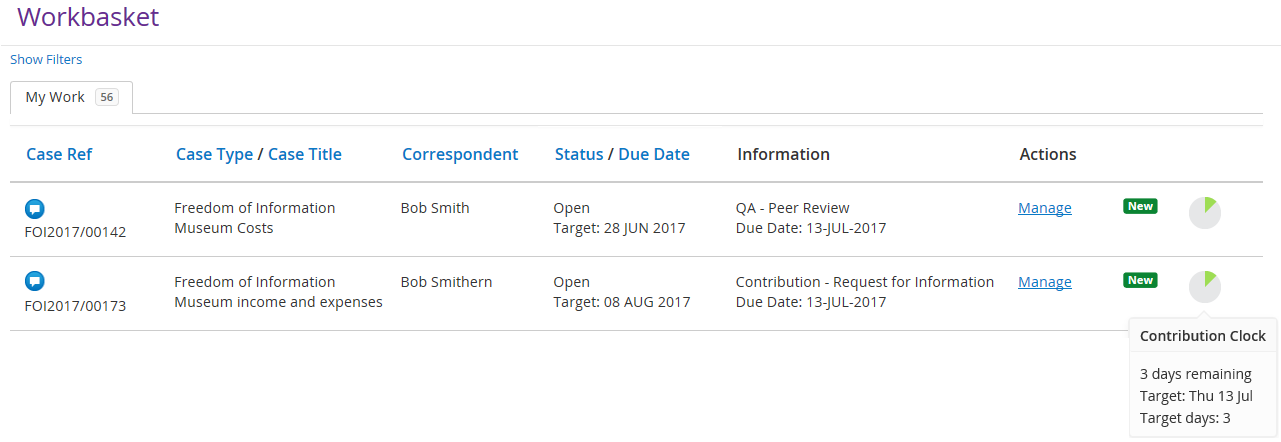
Request for information case on workbasket

Under Actions, click on the Manage link to take you to the Contribution page.

# Select the link below to open the eLearning module.

The eLearning module will open in a new internet window.

  • How to register on eCase to reply to a contribution request using eCase (Duration = 9 minutes)
  • How to respond to a Contribution using eCase via the Manage link in your workbasket (Duration = 12 minutes)

NOTE If a contribution has been assigned to a Team, you will have the option to View Case or Take Ownership of the contribution.

Respond to a Contribution Request

Contribution Page

eCase Online Learning
Accessibility Statement

Contribution page

Submitting contribution

Draft a response

Request a QA

Notes

Documents

Contact Us

support@ecase.co.uk

Fivium

© Fivium Limited