How to Complete an Internal Review
The Internal Review case follows the same process as an FOI case. Once an Internal Review case has been created, it is allocated to a Hub Coordinator or Drafter to process the review. They will see the following in their Workbasket.

|
Field |
Description |
|
Case Ref |
The Internal Review will have a case reference number starting with IR. Hover over the speech bubble to see the IR details. |
|
Case Type/Case Title |
The case type states that this is an FOI Internal Review and will state the specific FOI case type. |
|
Actions |
The actions will vary depending on whether the Internal Review has gone to a Hub Coordinator or a Drafter. The Hub Coordinator will see the View Case / Take Ownership action links and a drafter will see the Manage link. |
To complete an Internal Review case, follow the steps below.
- Sign into eCase. Refer to the How to Sign into eCase section.
- Go to your Workbasket and click on the Take Ownership or Manage link for the Internal Review case. The Case Details window opens.
- If any FOI Outcomes were added on the original FOI case type prior to the Internal Review case being created, these can be seen in the Review Outcomes section. Place a tick in the Appealed tick box if the outcome or exemption is being appealed.
NOTE The Review Decision will be updated once the review has been completed.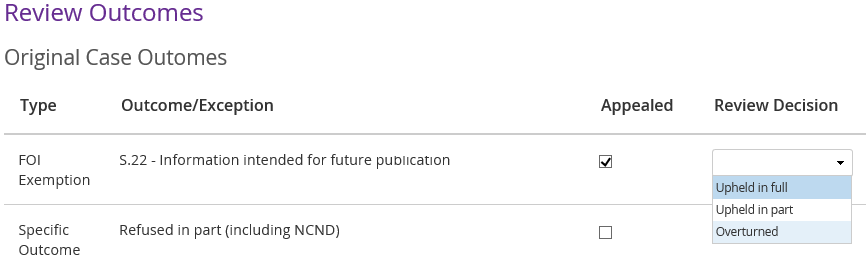
- Optional: if required, send the correspondent an acknowledgement, or if more details are required, send a clarifiaction email or letter.
- Review the case. If you require further contributions to the case, go to the Contributions/QA link.
Refer to the contribute to a case section on how to request a contribution. - Click on the Prepare a Response link to complete the response document for the internal review.
- Complete the Review Decision on the Case Details page. Click on the drop-down arrow next to each of the appealed outcomes or exceptions and select one of the options:
- Upheld in full
- Upheld in part
- Overturned - In the Outcomes added in current review field, add in any new outcomes that have been added as part of the review. This should only
be used if the request is now being denied on these grounds and was not added on
the original case outcome.
Step Action 1 Click on the + Add Outcome/FOI/EIR button. 2 Click on the Type drop down arrow and select one of the outcome types:
· Specific Outcome
· FOI Exemption
· EIR Exception3 Click on the Outcome/Exemption drop down arrow and select the relevant outcome. - To complete the Internal Review response, follow the steps in the Upload Response Document screen and the send response screen. The response can be seen in the Correspondence section of the Case Details screen. A copy of the email will be available in the Documents link.
- Once the response has been sent close the review by clicking on
the Close Case button. - Select the relevant Close Type from the drop down arrow.

· Complete – the details of the Internal Review are complete and a response has been sent to the correspondent.
· No Response Necessary – the Internal Review did not require a response. - In the Review Decision drop-down, select whether the review has Upheld in full, Upheld in part or Overturned the decision.
- Optional: add in any Close Notes that are required about the closure of the review.
NOTE If you have selected No Response Necessary, then the Close Notes field is mandatory. - To close the Internal Review case, click on the Close Case button.
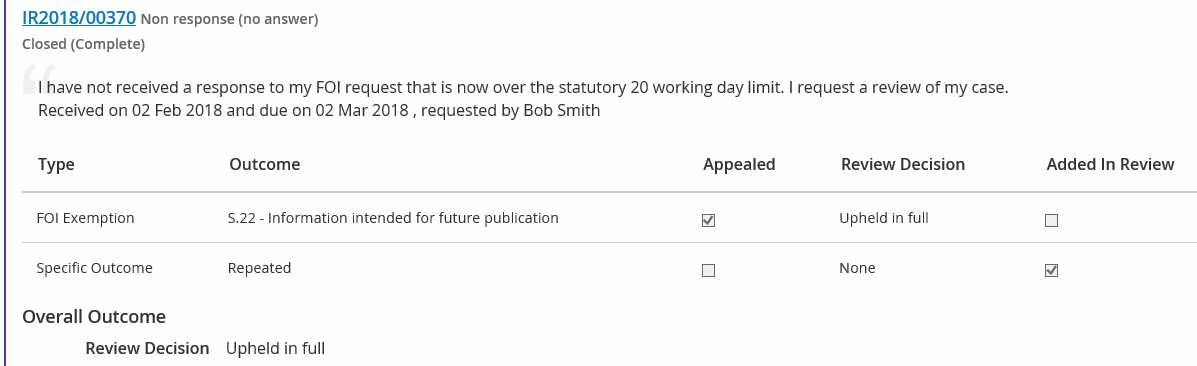
The Internal Review details are recorded on the original FOI case. Firstly, a record of the number of Reviews & Appeals will appear under the FOI Case Reference Number.
The Internal Review decision will also be recorded on the Reviews & Appeals link. Click on the Internal Review case reference number to view all notes and documents that are related to the review.