
Print
Manual Deletion
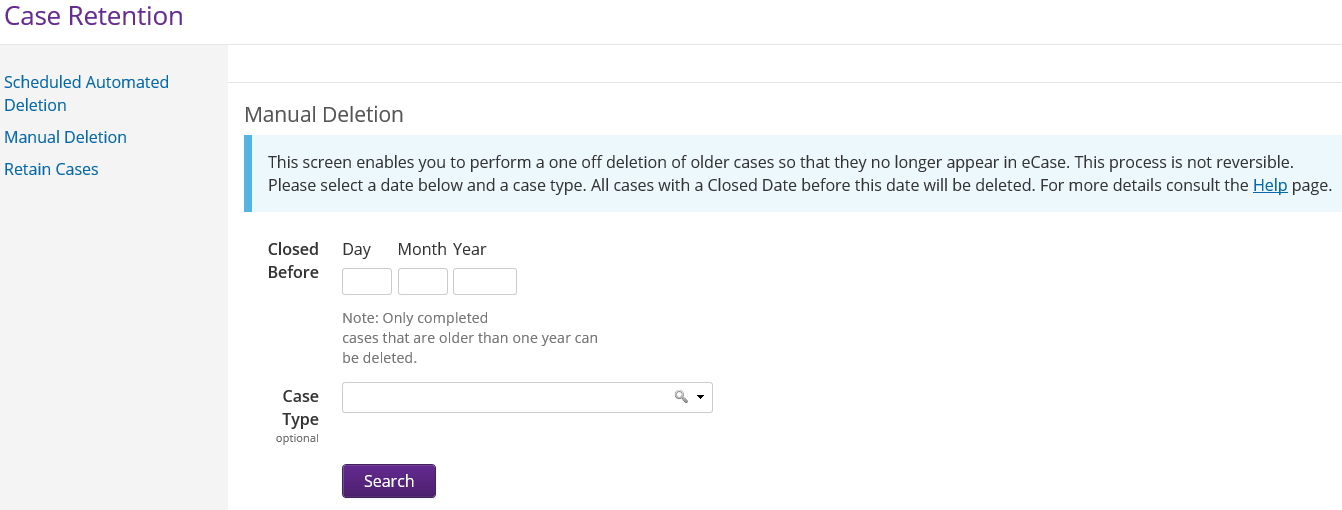
The manual deletion screen enables you to perform a one off deletion of older cases. The manual deletion is based on the case closed date and the Case Type. When a Closed date is selected, any cases that are closed before this date will be deleted.
- Sign into eCase. Refer to the How to Sign into eCase section.
- Click
on the eCase
More menu and select Case Retention in the Management section. The Case
Retention
screen appears where the Scheduled
Automated Deletion
is the default screen.
- On
the left menu, click on the
Manual
Deletion
link. The Manual Deletion screen appears.
- Select the case Closed date you would like to delete cases before by using the Closed Before field. Only cases completed more than one year ago can be deleted.
- In
the
Case Type field, select the
specific Case Type you would manually like to delete, or select
a parent level case type to delete all of the Case Types within that grouping.
- Click
on the
Search button. This will search eCase for all the Case Types
that match the criteria that has been chosen.
Once run, the
Search Results
will indicate the number of cases that are to be deleted with a link to Download a Spreadsheet of these
cases. The spreadsheet will include details of the case, for example, the Case Reference number, the Case Title etc.
- If you would like to delete all the cases, click on the Delete Cases button. A warning message appears asking you to check
that you would like to delete the cases and to ensure that you have downloaded
and saved the spreadsheet. If you are
happy to continue, click on the
OK
button.
- The selected cases were submitted for deletion message appears.