Print
Modify an automated reminder
To modify an automated reminder for a contribution or QA, follow the steps below:
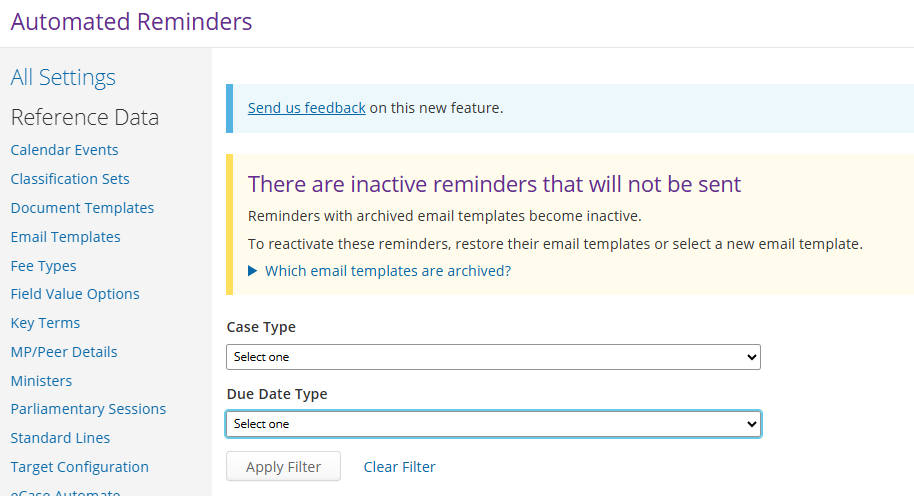
- Use the filter options to find the existing automated reminder you would like to update.
- Select the Edit link, from under the Actions column for the automated reminder that you want to edit.
- The Edit Automated Reminder screen will load. The fields will be populated with the current reminder configuration.
- To edit the case type that this reminder is for, select the Case Type field drop-down arrow and choose the new case type from the options.
- To edit the
Reminder configurations, either place your cursor in the working days field and update the number of days, or select the drop-down arrow at the end of the outstanding or for fields and update the option chosen - Reminders with archived email templates will show as Inactive under the Status column.
To reactivate these reminders, from the Edit Automated Reminder screen, select the Email Template field drop-down and choose an active email template from the list. If an inactive email template is chosen, an error message, Email Template must be active, will show - To view a list of archived email templates. From the Automated Reminders screen, select the Which email templates are archived? link, from the, There are inactive reminders that will not be sent, information banner.