Print
Add a new automated reminder
Automated reminders allow you to schedule chaser emails on open Contribution and Quality Assurance request targets.
To add a new automated reminder for a contribution or QA request target, follow the steps below.
- Go to the More menu and select the Automated Reminder option.
- Select the + Add Automated Reminder button. The New Automated Reminder screen will load.
- Select the drop-down arrow at the end of the Case Types field and choose the case type you would like to set the reminder for. Leave this as the default All Case Types to add a reminder for all case types.
NOTE If you want the same reminder for different case types but not all. A separate automated reminder will need to be created for each case type. - Next, use the Reminder section to configure when the reminder will be sent.

-
Place your mouse in the working days field and enter the number of working days. This is based on the number of working days before or after the contribution or QA target date.

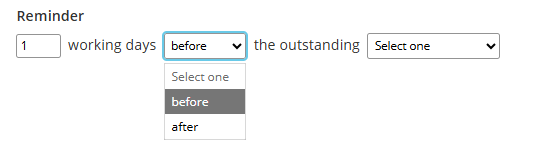
- Select the before drop-down arrow and choose if you would like to send a reminder email before the request target is due or after the request target is due.
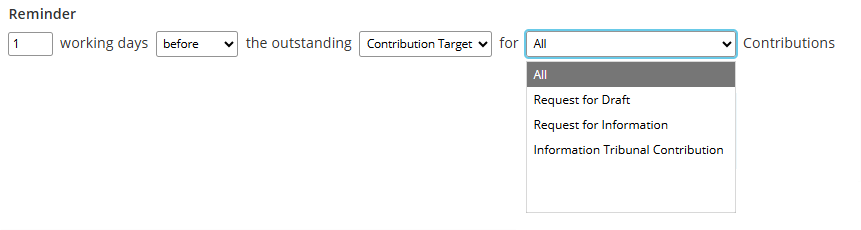
- Select the outstanding field drop-down to choose what the reminder email is for. This can be for either a Contribution or QA target.
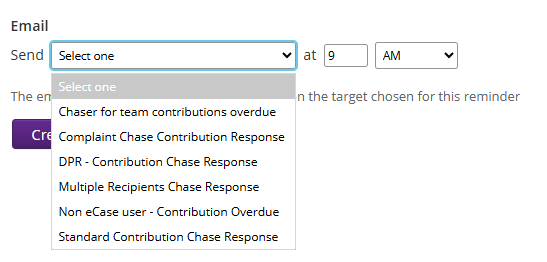
NOTE Automated reminders will not be sent for Record-only Contributions or QAs. - The Email - Send field will be used to select the relevant email template that has been created with your reminder text. The drop-down options come from the Contribution - Chase Response and QA - Chase Response categories via the email template screen.
The email template options shown in this drop-down, will change based on the target chosen for this reminder. Select Email Templates, for more information on how to maintain your email templates. - Select the Send field and choose a template from the drop-down options.
- Next, select the time that you would like the automated reminder to be sent. In the first at field, enter the time (use a 12 hour clock time). In the second at field select either AM or PM from the drop-down.

- Select the Create button, to create your automated reminder.
The reminder email will go out at the configured time with the original Contribution or QA request attached to the email. - You will be returned to the Automated Reminders screen. Your newly created reminder will now show in the list.
The Case Type, Due Date Type, Reminder Date and Email Template columns, will show the configuration setup for the reminder email.
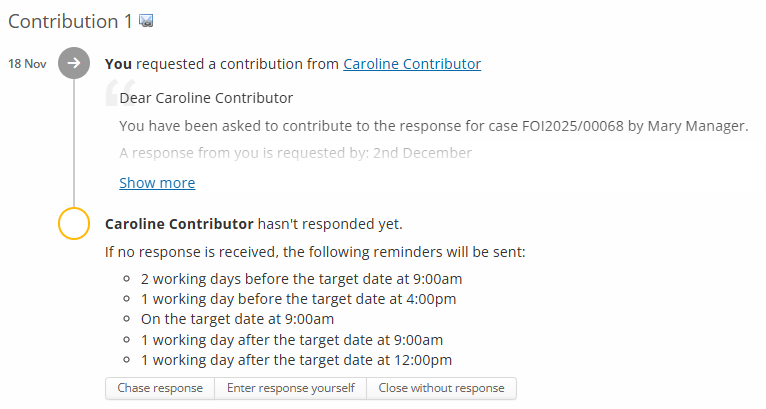
Any reminders that are due will appear on the relevant Contribution or QA request. Reminders are not sent for Contribution or QA requests that have been closed.