
Print
Create a document template with mail merge fields
When creating a document template in eCase, your document can include mail merge fields. The mail merge fields will extract data already entered onto the case and populate it into the document when it is downloaded from eCase. The list of available mail merge fields can be found by selecting the See all available mail merge fields link at the top of the Document Templates screen, or the Show available fields... link when you are adding a document template to eCase.
To create a document template with mail merge fields, follow the steps below:
- Open your current document template on your computer. The template will have your headers and footers, contain some standard text and be in a standardised format. In certain places on the document, you will be expecting the drafter to enter data, for example the correspondents name. These are the areas where mail merge fields can be used.
NOTE You will need the Maintain Document Templates privilege on your user account in order to see the mail merge fields on eCase.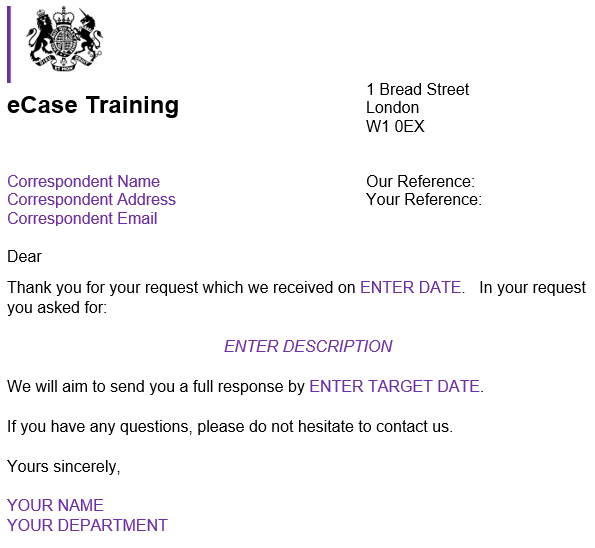
- Go to the More menu and select Document Templates from the Settings column.
- Select the See all available mail merge fields link in the blue banner at the top of the Documents Templates page. The All mail merge fields pop up window appears. The window shows the Field name on eCase where the data will be merged from. There is a short description of the field, along with example data. The format of the Mail Merge (double square brackets, capitals and underscore) is shown, along with a link to copy the mail merge to your clipboard. From your clipboard, you will be able to paste the mail merge field into your document template.
- In the Find a field search field, start to type in the name of the field you want to mail merge into your document. The search will start to filter the mail merge list for you as you type. It will match your search to any word in the Field name or Description field.
- Review the example column for the mail merge fields available. When you have found the mail merge you require, select the Copy link.
- Some of the frequently used mail merge fields are below.
Mail Merge field Description [[AUTHOR]] The name of the Case Owner when the document template is downloaded.
[[CASE_DUE_DATE]]
[[CASE_DUE_DATE_NO_TH]]
[[CASE_DUE_DATE_YR_NO_TH]]The Case Target date for the case.
4th July
4 July
4 July 2024[[CASE_REF]] The case reference number, for example FOI2024/00023 [[CASE_TITLE]] Information is merged from the Case Title field found on Case Details. 
[[CORRESPONDENCE_DESCRIPTION]] Information is merged from the Correspondence Description or Summary of Information Requested field. 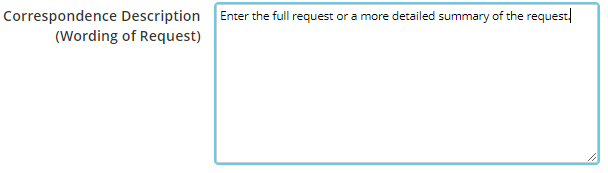
[[CORRESPONDENT_ADDRESS]] The lead contacts address and postcode will be merged into the document. This pulls from the Correspondents Details, Address and Postcode, section on Case Details. 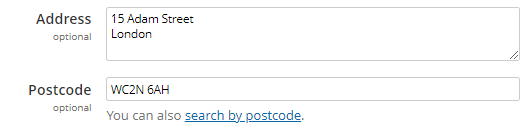
The lead contact is identified by the yellow Lead Contact icon
[[CORRESPONDENT_EMAIL]] The lead contacts email address will be merged into the document. This pulls from the Correspondents Details, Email Address, section on Case Details. 
[[CORRESPONDENT_FAMILIAR_NAME]] This will take the lead contacts name and mail merge the details based on the fields entered.
If the Title, Forename and Surname field have been pre-populated, then eCase will merge Ms Storm.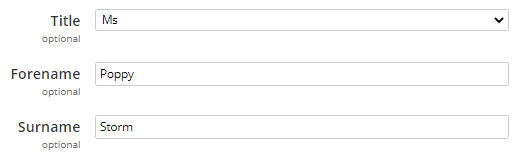
If the Title and Surname field have been pre-populated, then eCase will merge Ms Storm.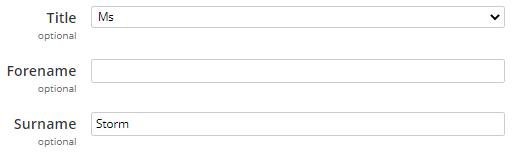
If the Forename and Surname field have been pre-populated, then eCase will merge Poppy Storm.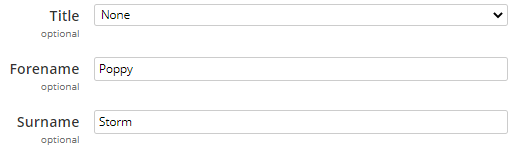
[[CORRESPONDENT_NAME]]
This will take the lead contacts name and mail merge the details based on the fields entered.
If the Title, Forename and Surname field have been pre-populated, then eCase will merge Ms Poppy Storm.
If the Title and Surname field have been pre-populated, then eCase will merge Ms Storm.
If the Forename and Surname field have been pre-populated, then eCase will merge Poppy Storm.[[ESIGNATURE]] If the case owner has eSignatures assigned to their user account via My Details, then an eSignature can be merged into the document. [[LETTER_DATE_NO_TH]] or [[LETTER_DATE]] This mail merge can be used to add in the date the document was downloaded. You have the option to choose whether to show this with or without the th, st, nd or rd.
4 July 2024 or 4th July 2024
[[RECEIVED_DATE_NO_TH]]
[[RECEIVED_DATE]]
[[RECEIVED_DATE_NO_TH_YR]]
[[REEIVED_DATE_WITH _YEAR]]4 July
4th July
4 July 2024
4th July 2024
Various options to merge in the received date of the correspondence. This mail merge will take the information from the Date Received field on Case Details.
[[RESPONDING_TEAM]] The Team field on Case Details will be merged into the downloaded document. 
[[STANDARD_LINES]] Use this mail merge field if you choose to include Standard Lines of policy text in your response document. Select the Standard Lines in the Prepare a Response screen, Pick Standard Lines section. 
[[YOUR_REF]] If the correspondent has provided you with a reference to use when communicating with them, add this to the Correspondence Ref field so that it can be merged into documents. 
- Add the relevant mail merge fields to your document template. Once you have used the Copy function on the All mail merge fields pop up window, paste the mail merge fields into your document.
If you decide to manually type the mail merge fields, follow the specific format. Double square brackets, capital letters and underscore between words. For example [[CASE_REF]].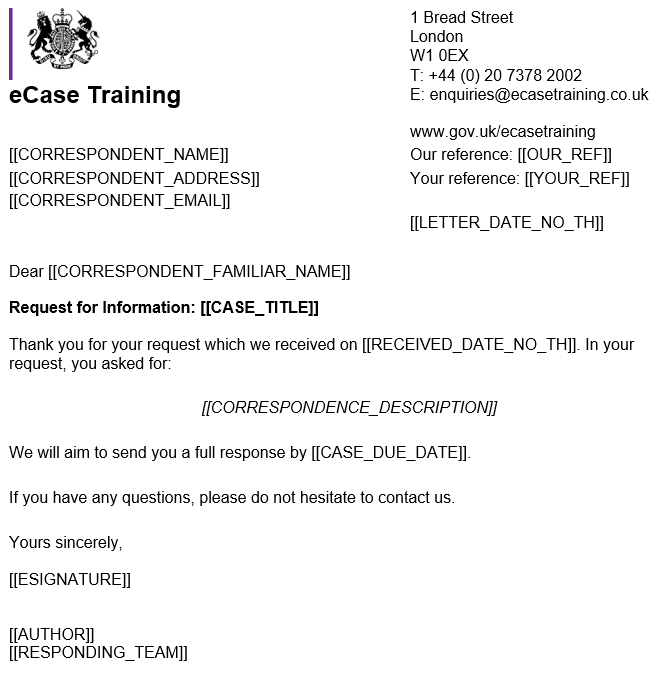
- Save your document as a word document (.docx), rich text format (.rtf) or an open document text format (.odt), then follow the steps on the how to add a document template page. Once your document template is added to eCase, preview the document template to ensure the mail merge fields are correct and show you the right example data.