
Print
Add eCase as a new Replying Party Trust
Initially, you will need to configure AD FS to recognise eCase as a permitted Service Provider. To do this, follow the steps below:
- In the AD FS managment tool, click Action > Add Replying Party Trust...
- When prompted to Select Data Source, select Enter data about the relying party manually.
- Enter a display name of your choice, for example, eCase.
- When prompted to Choose Profile, select AD FS profile.
- When prompted to Configure Certificate, skip this stage by clicking Next.
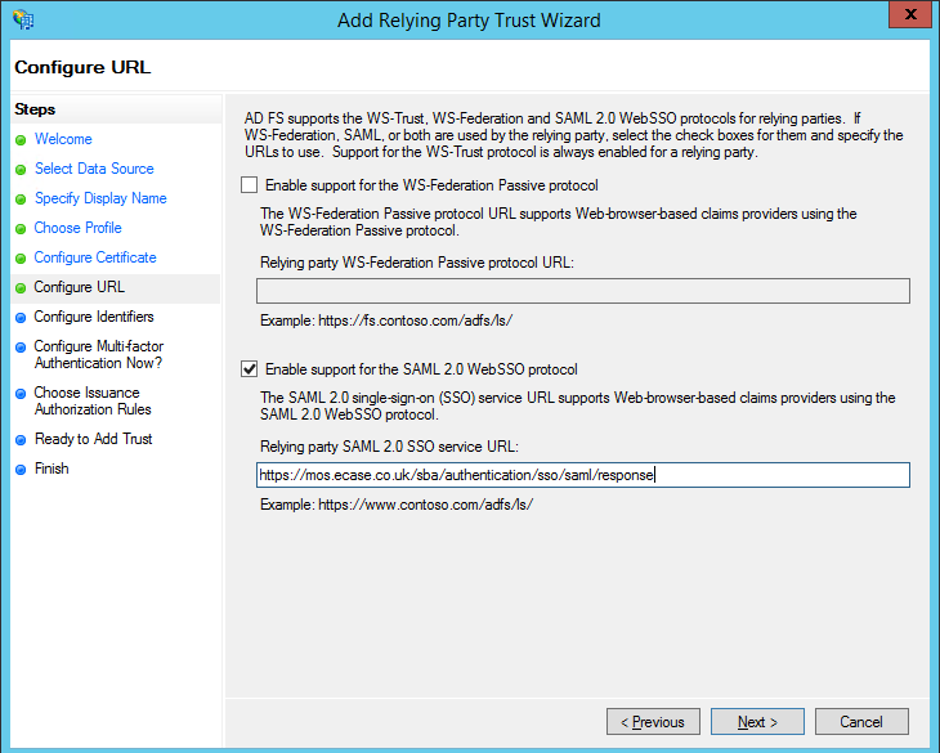
NOTE You should not configure a certificate. - When prompted to Configure URL, tick the tick box for Enable support for the SAML 2.0 WebSSO protcol.
- Sign into eCase and go to the More menu on the eCase menu bar and click on the drop down arrow. Select the SAML Settings link under the Settings column. The SAML Settings page appears.
- Copy the SP Endpoint URL from the SAML Settings page and paste it into the service URL box.
- When prompted to Configure Identifiers, copy the SP Entity ID from the SAML Settings page and paste it into the Relying party trust identifier box, then click Add.
- When asked if you want to Configure Multi-faction authentication, select not at this time.
- When prompted to Choose Issuance authorization rules, select Permit all users access to this relying party.
- Review the settings and click Next to add the Relying Party Trust.