
Awaiting Allocation
Awaiting allocation is a stage in the process of a case when a case can be opened and assigned a Case Ref number, but no team has been allocated yet. This is useful if you would like to discuss the case prior to allocating a team, or deciding if it is a complaint or non-complaint.
Cases sent to this stage will appear in the Awaiting Allocation tab in your workbasket. Anyone who has the Manage cases Awaiting Allocation privilege on their user account will see this tab.
- On your My Work tab, click on the Resume link.
- On the Create Case tool bar, click on the Create Unallocated button.
A message appears to say that the Case Ref has been assigned, along with the actual Case Reference number for that case. - Click on the OK button to dismiss the message. The case will automatically move to the Awaiting Allocation tab.
NOTE Anyone who can create cases will be able to see these cases in the Awaiting Allocation tab.
On the Awaiting Allocation tab, the Assignee will say Unassigned: Awaiting Allocation and under the Information column it will say Awaiting Allocation.
The team that is responsible for allocating cases can then view the case by clicking on the View Case link.
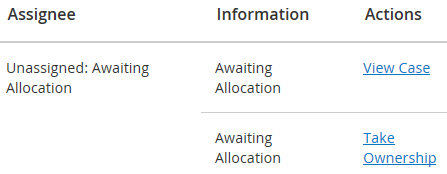
If you would like to acknowledge the case, then allocate the case to a team, click on the Take Ownership link. You are now the owner of the case and your name will be in the Assignee column.
The case will stay in the Awaiting Allocation tab until you allocate the case to a team member. The Actions link changes to Manage.